
Every time you access the internet, hidden trackers silently collect data about your device — from IP address, system configuration to how the graphics card displays images. Tools like Pixelscan help you clearly detect the extent to which your "digital fingerprint" is exposed online.
In this article, together with Hidemium, you will discover what Pixelscan is, how it works, what are its features, how to read results, and when to use Pixelscan alternatives. You will also learn how to achieve a clean, consistent browser fingerprint to protect your online privacy.
1. What is Pixelscan?
Pixelscan is a free browser fingerprint checker that analyzes over 20 data points — including WebRTC, Canvas, User-Agent consistency, timezone, IP geolocation, and more — to reveal how uniquely identifiable your device is online. It is one of the most trusted tools in the antidetect browser and online privacy space.
Pixelscan can be considered a "super detective" of the internet. This tool analyzes your device to determine the elements that make it unique. Simply put, every device has a unique identifier — similar to a personal browser fingerprint.
This digital fingerprint includes several elements:
- How you configure and use the browser.
- Font set installed on the device.
- Hardware information inside the machine.
- Other technical details discoverable while you are online.
Pixelscan compiles all of this data to create a "digital portrait" of the device. Websites or companies often use this information for behavior tracking and to display personalized ads.
However, Pixelscan also has direct benefits for users. Knowing your digital fingerprint exposure level helps you understand how much information websites can collect from your device, letting you be more proactive about protecting your data and maintaining anonymity online.

>>> Learn more: How to set up static IP on Windows quickly, simply and effectively
2. How Does Pixelscan Work?
Pixelscan is a specialized tool for analyzing browser fingerprints — a set of signals that websites use to identify users without relying on cookies. As soon as you visit the site, Pixelscan scans and checks many important factors such as canvas rendering, audio context, font settings, WebGL properties, and HTTP headers.
Each signal may seem harmless on its own, but when combined, they form a unique digital fingerprint, helping to differentiate your device from millions of others.
Pixelscan then compares this fingerprint against a database of known patterns to determine your vulnerability to online tracking. If your configuration is too unique — or worse, internally inconsistent — you run the risk of being flagged by anti-fraud systems, even if you don't use cookies.
In particular, Pixelscan also helps you detect potential IP leak issues like inconsistent settings or exposed identifiers, which can degrade anonymity. In other words, Pixelscan doesn't just provide raw technical data — it gives you a comprehensive picture of how websites, advertisers, and anti-fraud systems see your device.
>>> Learn more: Top 7 Ways to Bypass an IP Ban
3. Outstanding Features of PixelScan
PixelScan is a powerful online security analysis tool that helps you understand how your device is recognized and tracked across the internet. Here are the key features:
- Unique digital fingerprint detection — PixelScan creates a unique identifier for your device. Your device can still be recognized even if you delete cookies or use incognito mode.
- Detailed system and browser analysis — Provides comprehensive information about your browser type, operating system, add-ons, fonts, and screen configuration.
- Safety assessment — Detects potential vulnerabilities that could lead to personal information leaks and provides suggestions to improve device security.
- Comprehensive report — After each scan, PixelScan generates a detailed report of what data websites may have collected from you.
- WebRTC leak test — Detects WebRTC configurations that can unintentionally reveal your real IP address, even when using a VPN or proxy.
- Canvas & Audio fingerprinting analysis — Checks how the device renders images (Canvas) and processes sound (Audio) to build an accurate device profile.
- IP geolocation display — Shows your IP address and geographic location, simulating how websites identify and track users.
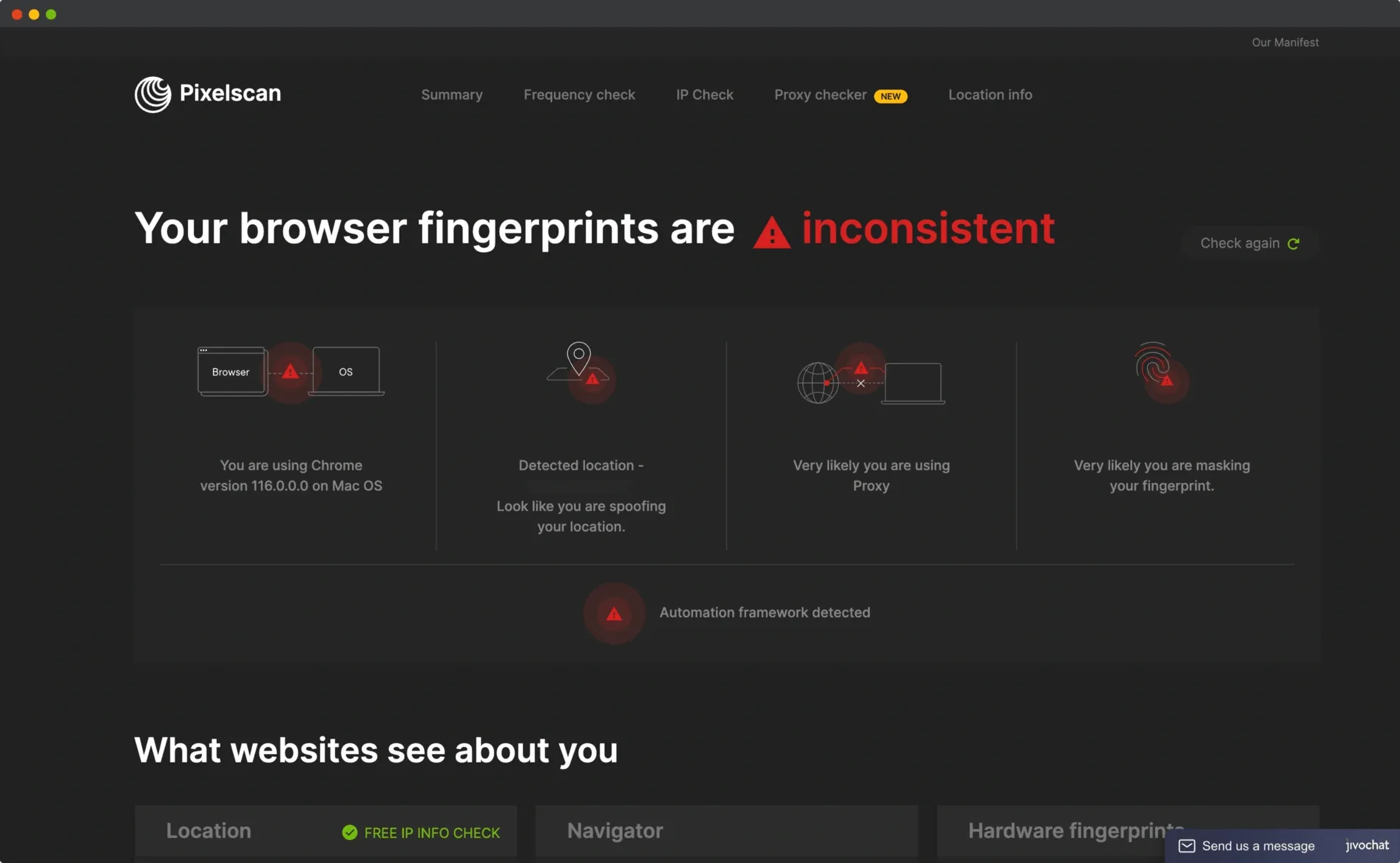
- Fingerprint consistency check — One of Pixelscan's most important features: it cross-checks whether your User-Agent, OS, timezone, language, and IP are all consistent with each other.
>>> Learn more: How to Fake IP Effectively Using VPN and Proxy – Complete Guide in 2025
4. How to Use PixelScan: Step-by-Step Guide
Pixelscan is a powerful online tool that helps you analyze your digital fingerprint and find out what data your device is revealing. Using this tool is simple — just follow these steps:
Step 1: Go to PixelScan.net
Open your browser and go to PixelScan.net. This is a web tool — you do not need to install any additional software or plugins.
Step 2: Start scanning
Right on the home page, click the "Start scanning" or "Analysis" button. PixelScan will immediately start collecting and analyzing data from your device and browser.
Step 3: Wait for data analysis
During processing, PixelScan will check important information such as:
- IP Address and geolocation
- Browser version and configuration
- Operating system in use
- Plugins and installed fonts
- Screen resolution
- Display language and time zone
- WebRTC test results (IP leak check)
- Canvas fingerprint and audio fingerprint
- Security risks or vulnerabilities
Step 4: View the results report
Once completed, PixelScan will display a detailed report showing what data the website can collect from you, and assesses the level of uniqueness of your browser fingerprint. Understanding this information helps you be more proactive in online identity security.
Step 5: Enhance Privacy
Based on the report, you can take several steps to protect your personal information:
- Adjust browser settings, limit plugins and cookies.
- Use a VPN, privacy-focused extensions, or incognito browsing mode.
- Update your software, operating system, and browser regularly.
- Disable WebRTC to avoid IP address leaks.
- Choose a secure search engine like DuckDuckGo to minimize tracking.
- Use an antidetect browser like Hidemium to create consistent browser profiles that pass fingerprint checks.
Step 6: Periodic check
Use PixelScan regularly to scan your digital fingerprints. Regular scans help you quickly identify exposed data and fine-tune your security settings.
5. How to Read Pixelscan Results
Understanding what Pixelscan's report actually means is critical — especially if you manage multiple accounts or use proxies and antidetect browsers. Pixelscan evaluates each data point and assigns a status indicating how well your browser profile holds up under scrutiny.
There are three key result statuses you will encounter:
- ✅ Consistent — All signals align with each other. Your User-Agent matches your OS, your timezone matches your IP location, and no WebRTC IP leak is detected. This is the ideal state for a clean browser fingerprint. Anti-fraud systems are unlikely to flag you.
- ⚠️ Suspicious — One or more signals show anomalies. For example, your browser reports a Windows OS but your Canvas rendering behaves like Linux, or your timezone doesn't match your proxy's IP location. This often happens when using a VPN or proxy without proper fingerprint configuration.
- ❌ Inconsistent — Multiple signals contradict each other. This is a red flag. E-commerce platforms, ad networks, and anti-fraud systems will almost certainly detect and flag your session. Common causes: mixing proxies without adjusting timezone/language, using a generic browser with a datacenter IP, or having WebRTC leak your real IP while your proxy shows a different location.
Key things to check in your Pixelscan report:
- WebRTC leak — Does your real IP show through WebRTC? If yes, this overrides your proxy and exposes your identity.
- Timezone vs. IP match — Does your browser's timezone match the country of your proxy IP? Mismatches are a classic detection signal.
- User-Agent consistency — Does your declared browser/OS match what Canvas, WebGL, and fonts actually reveal?
- Language settings — Does your browser language match your IP's expected locale?
💡 Pro tip: If Pixelscan shows any Suspicious or Inconsistent flags, the fastest fix is to use an antidetect browser like Hidemium that automatically synchronizes all fingerprint parameters — User-Agent, WebRTC, Canvas, timezone, language, and fonts — into one consistent browser profile.
6. How to Pass Pixelscan: Get a Clean Browser Fingerprint
Getting a "clean" result on Pixelscan means your browser fingerprint is fully consistent — no leaks, no contradictions, no suspicious signals. This is essential for anyone managing multiple accounts, running affiliate campaigns, doing e-commerce, or simply wanting to protect their online privacy.
Here is what causes fingerprint inconsistencies — and how to fix them:
- WebRTC IP leak — Disable WebRTC in your browser settings or use a browser that handles this automatically. Hidemium routes WebRTC through your assigned proxy by default, eliminating leaks entirely.
- Timezone mismatch — Always set your browser timezone to match your proxy IP's country. Antidetect browsers like Hidemium do this automatically per browser profile.
- Canvas & WebGL fingerprint inconsistency — Canvas fingerprinting reveals GPU-level device identity. Antidetect browsers use fingerprint spoofing to generate unique, consistent Canvas values per profile.
- User-Agent mismatch — Your declared browser version must match what Canvas and font rendering reveal. Hidemium manages this within each browser profile automatically.
- Language/locale mismatch — Set browser language to match your proxy's target region.
The most reliable approach is to use a dedicated antidetect browser that handles all of these parameters together, rather than trying to configure each one manually.

🚀 Ready to pass Pixelscan with a clean fingerprint? Try Hidemium free → — Create browser profiles with fully consistent fingerprints that pass Pixelscan, BrowserLeaks, and all major fingerprint detectors. No WebRTC leaks. No inconsistent signals.
7. Pixelscan + Antidetect Browser: The Ultimate Solution for Privacy and Anonymity
Pixelscan allows you to check for online information leaks, but it does not provide protection by itself. This is where an antidetect browser like Hidemium plays an important role.
With Hidemium, you can:
- Create independent browser profiles each with a unique, consistent fingerprint.
- Integrate proxies to hide your real IP address — with WebRTC automatically matched to the proxy.
- Manage multiple accounts without worrying about cross-tracking or fingerprint overlap.
- Pass browser fingerprint tests including Pixelscan, thanks to its advanced fingerprint spoofing system.
- Automatically sync timezone, language, Canvas, WebGL, and User-Agent — all within each profile.
Think of it this way: Pixelscan is the diagnostic tool. Hidemium is the treatment. Use Pixelscan to identify the problem, then use Hidemium to fix and maintain a clean fingerprint.
8. Reliable Pixelscan Alternatives
While Pixelscan is useful, it is not the only fingerprint checker available. Many users combine multiple tools for more comprehensive analysis or as a cross-reference.
Best Pixelscan alternatives:
- BrowserLeaks — Provides detailed analysis of individual fingerprint vectors including WebGL, Canvas, and fonts.
- AmIUnique — Measures the statistical uniqueness of your browser fingerprint against a large database of real users.
- Whoer.net — Fingerprint and IP detection tool, updated regularly with new tracking methods.
- Iphey — Compact solution supporting quick antidetect browser testing.
- BrowserScan — Assesses anonymity level and detects VPN/proxy usage patterns.
💡 Tips: Try multiple tools to compare results. If they all point to the same vulnerability, it's time to upgrade your security configuration. In this situation, Hidemium is the top choice for refining browser fingerprinting and strengthening your online privacy.
>>> Learn more: 7 Free Online IP Fingerprint Checker Tools
9. Frequently Asked Questions about Pixelscan
1. Does Pixelscan have extensions?
Currently, Pixelscan has not released any official browser extensions. Be cautious with third-party versions claiming to be Pixelscan — they may pose security risks. Always use the tool directly from the official website to ensure safety.
2. Is Pixelscan safe to use?
Yes. Pixelscan is completely safe because it only displays data that your browser already makes public. It does not install software, collect personal data, or track activity outside of the test.
3. Can Pixelscan hide my IP address?
No. Pixelscan only shows your currently visible IP address — it does not mask or change it. If you want to anonymize your IP and browser fingerprint, you need to use a VPN, proxy, or an antidetect browser in combination. Hidemium combines proxy integration with full fingerprint spoofing for complete protection.
4. Does Pixelscan slow down the browser?
Not significantly. Pixelscan is optimized to scan quickly and efficiently. If your browser is slow, it is usually caused by something else, not Pixelscan.
5. Does Pixelscan work on all browsers?
Yes. Pixelscan supports most popular browsers including Google Chrome, Mozilla Firefox, Microsoft Edge, and Safari. However, the accuracy of results may vary depending on the settings and characteristics of each browser.
6. How often should I run the Pixelscan test?
You can run it whenever you want to check your browser fingerprint. Periodic scanning — especially after updating your browser, installing new plugins, or switching proxies — will help you detect changes that affect your digital fingerprint early.
7. How can Pixelscan help when privacy is violated?
Pixelscan cannot directly fix privacy issues, but it helps you identify which elements of your digital fingerprint could be used for tracking. This way, you can proactively protect yourself by adjusting browser settings, removing cookies, or using privacy tools like Hidemium to maintain a consistent, clean fingerprint.
🔒 Stop worrying about inconsistent fingerprints. Download Hidemium free → Run Pixelscan again after setup — and see the difference yourself.
Related Blogs
.png)
In the digital era, Botnet is one of the biggest threats to network security. So exactly What is a botnet?? How to recognize and Prevent DDoS attacks from Botnet effectively? Let's go together Hidemium Find out details in the article below.1. What is a botnet? Popular attack targetsBotnet (short for “robot network”) is a network of infected computers, phones, or IoT devices. malicious code and[…]
.png)
Due to the particular characteristics of Telegram, Airdrop games with a large volume cannot run on the browser and can only be played on mobile phones, which creates many inconveniences for players, especially with games like Hamster Kombat. To solve this problem, Hidemium has developed an exclusive extension to Bypass Bot Game Telegram. This tool helps users easily join Telegram Airdrops right[…]
In the digital age, owning and managing multiple Google accounts not only is it a personal need, but it is also an indispensable part of the operations of businesses, marketers or freelancers. The article below Hidemium will guide you how to Create a large number of Google accounts safely and efficiently in 2025, and suggests strategies, support tools, and management tips to help you optimize[…]

In today's data-driven business environment, companies conducting market research, advertising verification, or large-scale data collection increasingly rely on high-quality proxy services to avoid detection and platform restrictions. However, traditional proxy services often suffer from unstable connections and limited geographic coverage, leading to low efficiency. The emergence of Nstproxy is[…]
.png)
The rise of AI in advertising has shifted how teams produce video creatives. Instead of long production cycles, marketers now test multiple variations in hours. At the center of this shift is the AI Ad Generator, a category of tools designed to turn scripts, prompts, or product ideas into ready-to-use ad videos.But the market is not uniform. Some tools focus on automation speed, others on design[…]
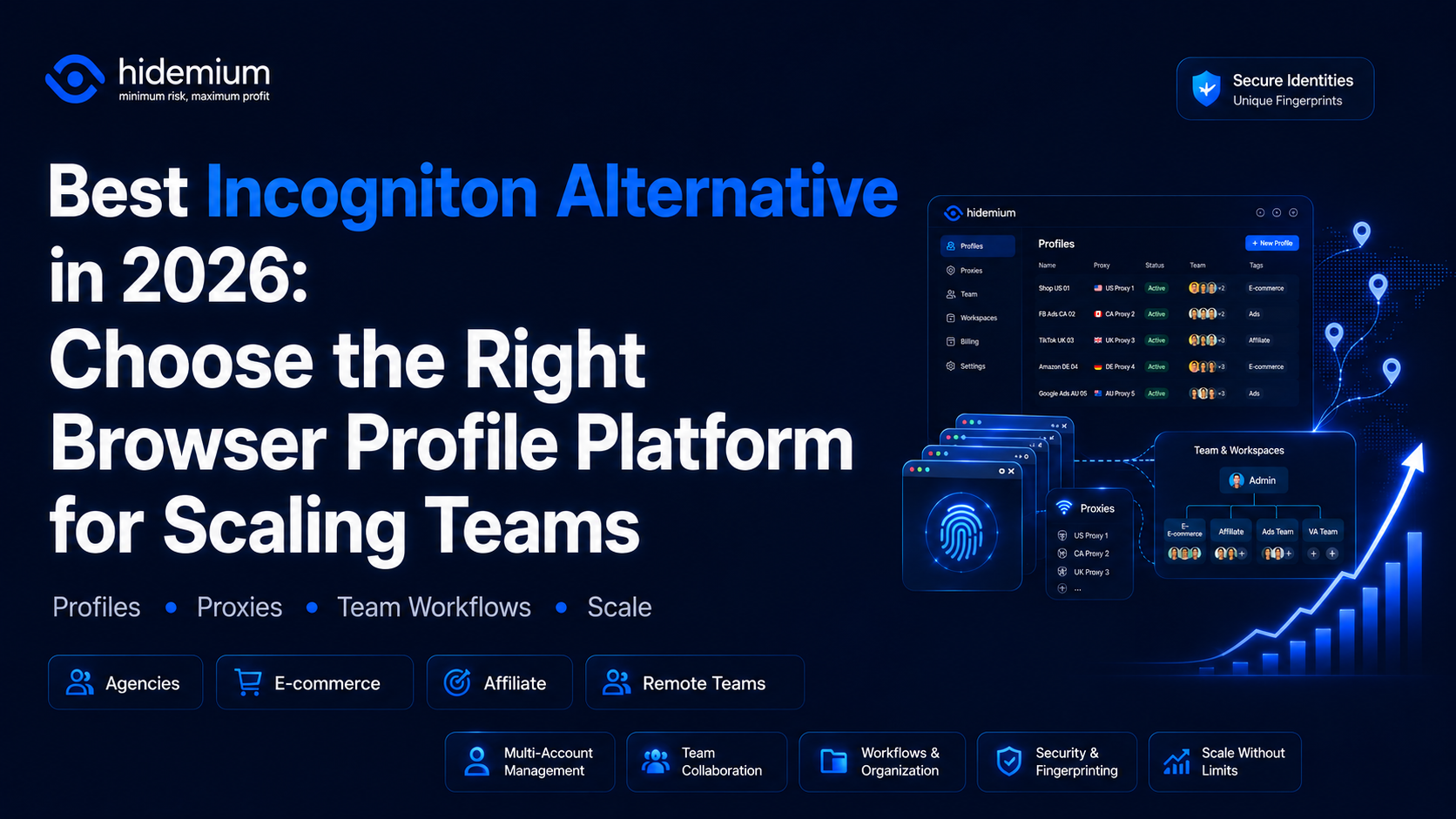
What is the best Incogniton alternative in 2026?The best Incogniton alternative in 2026 is Hidemium—an Incogniton alternative for teams that need more than basic browser profile management. Hidemium is a strong choice for users who want to organize multiple browser profiles, assign proxies, manage team workflows, separate online workspaces, and scale multi-account operations with less[…]
