How to Configure IPWeb Proxies in Hidemium Antidetect Browser: Step-by-Step Integration Guide
Try Hidemium for free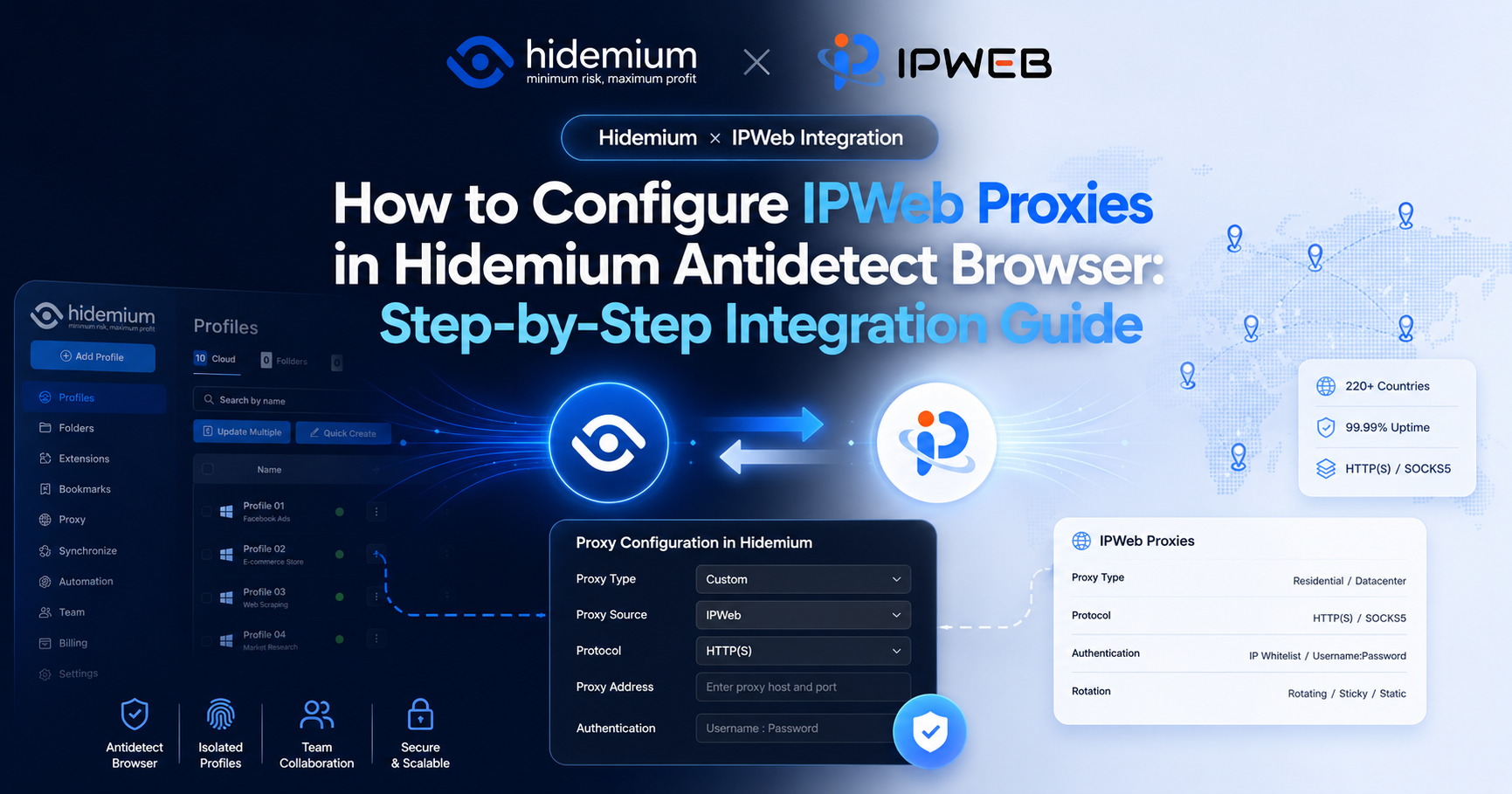

By using IPWeb with Hidemium, users can select proxies from different countries, regions, and proxy types based on the actual needs of each browser environment.
This guide uses IPWeb static residential proxies as an example and walks through the entire process, from obtaining an IPWeb proxy to creating a Hidemium browser environment, entering proxy information, and testing the connection.
1. IPWeb Global Proxy Network and Core Advantages
IPWeb is a global proxy service provider for developers, data teams, cross-border businesses, and automation projects. It currently offers rotating residential proxies, static residential proxies, unlimited residential proxies, mobile proxies, and datacenter proxies.
IPWeb currently provides 70M+ residential IPs, covering 220+ countries and regions and 20,000+ cities, with support for common proxy protocols including HTTP, HTTPS, and SOCKS5.
Compared with providers that offer only a single proxy product, IPWeb provides a more complete range of proxy types and geographic resources, allowing users to select the right product based on requirements such as IP persistence, location, usage duration, and traffic.
- Extensive global coverage: IPWeb covers 220+ countries and regions and provides a wide range of location resources, making it easier to configure the appropriate network exit for different Hidemium browser environments.
- Multiple proxy types: Rotating residential proxies are suitable for tasks that require flexible IP rotation, while static residential proxies are better suited for browser environments that need to maintain the same IP over a longer period.
- Support for common proxy protocols: HTTP, HTTPS, and SOCKS5 are supported and can be used with browsers, software, and other tools that support third-party proxies.
- Convenient for long-term browser environment management: Static residential proxies maintain a fixed IP during the active subscription period, allowing a long-term Hidemium browser environment to use a consistent proxy connection for easier management and troubleshooting.
- Simple integration: Once you obtain the proxy host, port, username, and password, the proxy can be configured directly in Hidemium without installing an additional proxy extension.
For users who already manage multiple browser environments with Hidemium, IPWeb proxy resources can therefore be selected according to actual task requirements and connected directly to Hidemium.
2. How to Configure IPWeb Static Residential Proxies in Hidemium Antidetect Browser
The overall configuration process can be summarized as:
Purchase an IPWeb static residential proxy → Obtain proxy information → Create a Hidemium browser environment → Select a platform → Enter basic information → Configure the proxy → Test the proxy → Create and run
Step 1: Purchase an IPWeb Static Residential Proxy
First, register or log in to your IPWeb account.
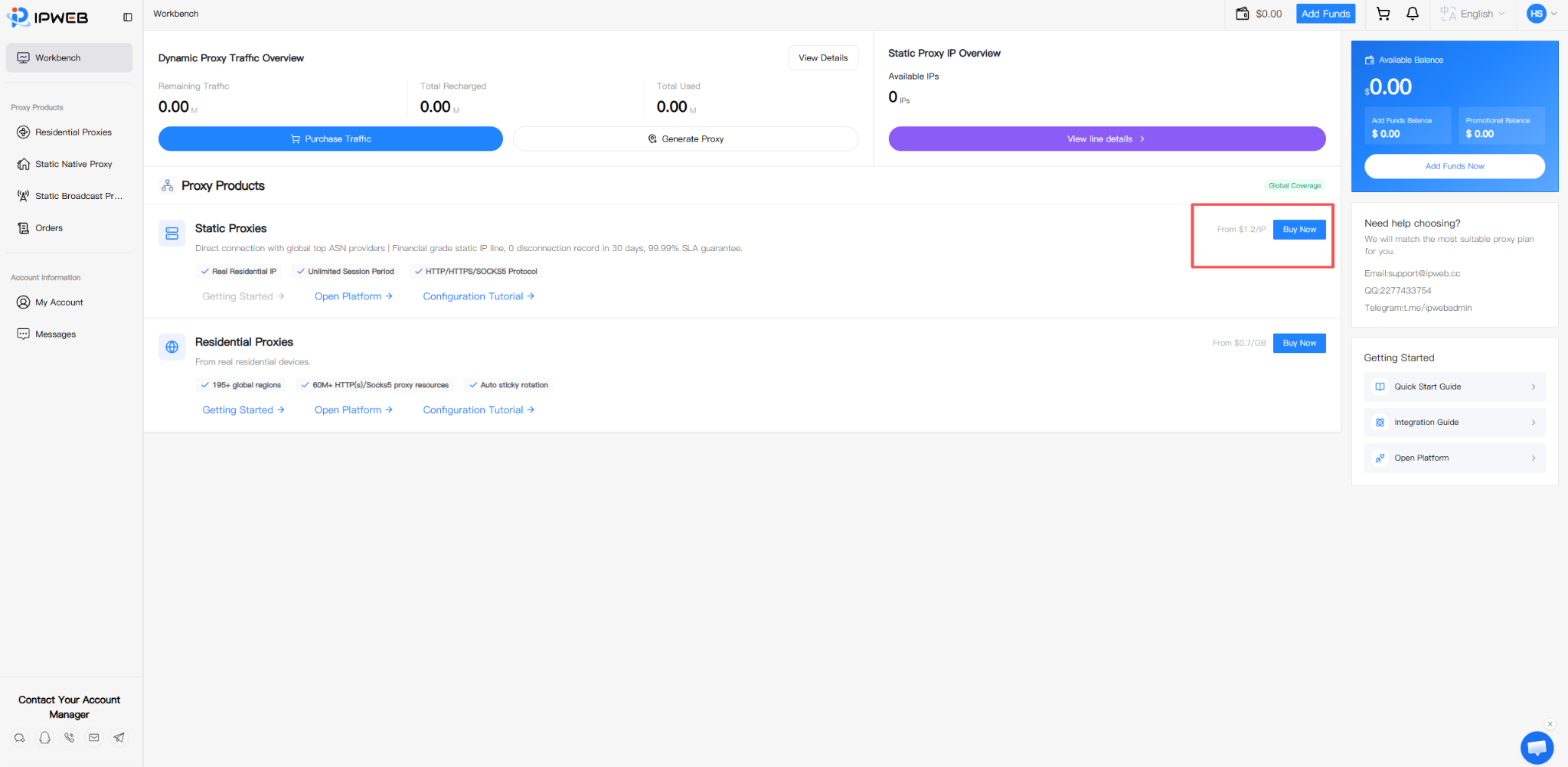
After entering the dashboard, locate Static Proxy in the proxy products section and click:
Buy Now
This will take you to the static proxy purchase page.
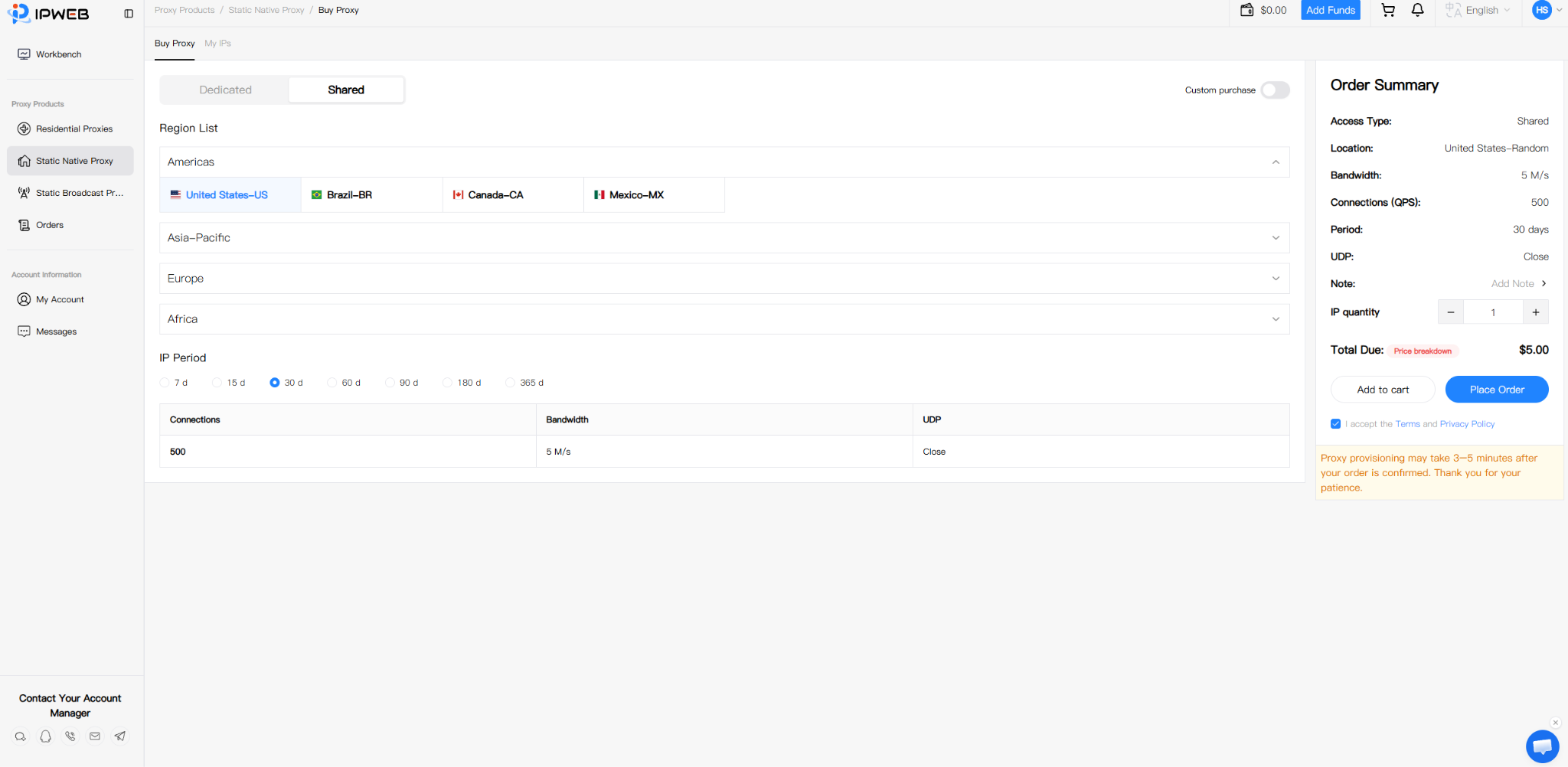
On the purchase page, select proxy resources according to your actual requirements.
The main purchase options include:
- Dedicated / Shared
- Country / Region
- IP subscription duration
- Number of IPs
After selecting a country or region, the order details will be displayed on the right side of the page. You can also view parameters such as bandwidth, concurrent connections, and UDP status.
After confirming the proxy type, location, subscription duration, and number of IPs, click:
Confirm Order
to complete the purchase.
This guide uses an IPWeb static residential proxy for the demonstration. If this is your first time configuring IPWeb with Hidemium, you can start with a small number of IPs for connection testing and purchase more later based on actual usage.
Step 2: Obtain IPWeb Static Residential Proxy Information
After completing the purchase, go to:
Static Proxy → My IPs
Find the proxy line you just purchased and open its details.
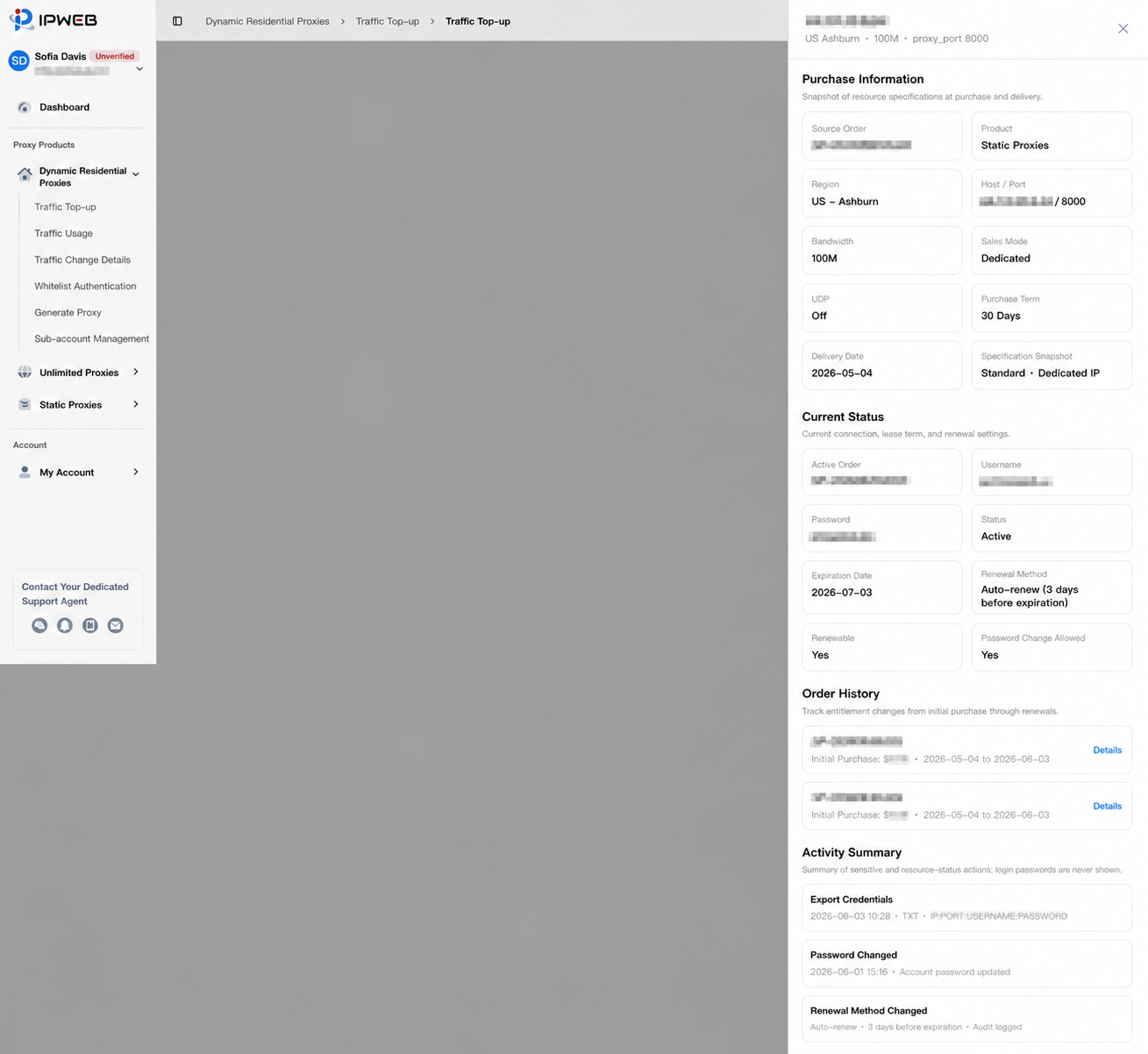
In the line details, you can find the information required for configuring Hidemium, including:
- Proxy host and port
- Proxy username
- Proxy password
You can also view information such as location, bandwidth, purchase period, line status, and expiration date.
When configuring Hidemium, the information you actually need is:
Proxy host + Port + Username + Password
It is recommended to copy this information directly from the IPWeb dashboard to avoid manual input errors.
Please note that the username and password shown here are authentication credentials for the proxy line, not the login credentials for your IPWeb account.
Once the proxy information is ready, open Hidemium.
Step 3: Log In to Hidemium and Create a Browser Environment
If you have not installed Hidemium yet, visit the Hidemium website to download the client and complete registration.
After logging in to Hidemium, click:
Add Profiles
on the main interface to start creating a new browser environment.
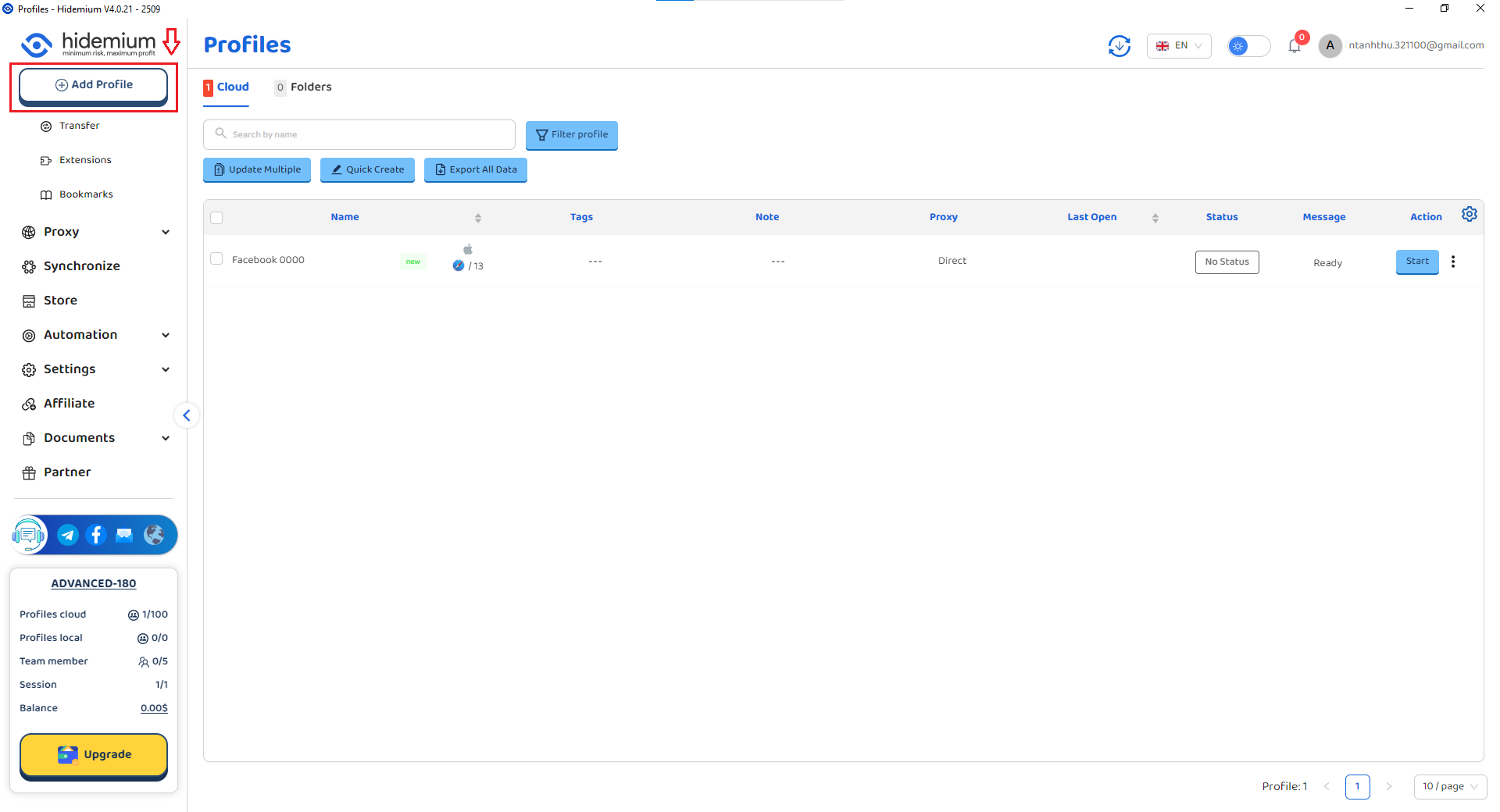
After entering the creation process, continue with the settings shown on the page.
Step 4: Select the Platform for the Browser Environment
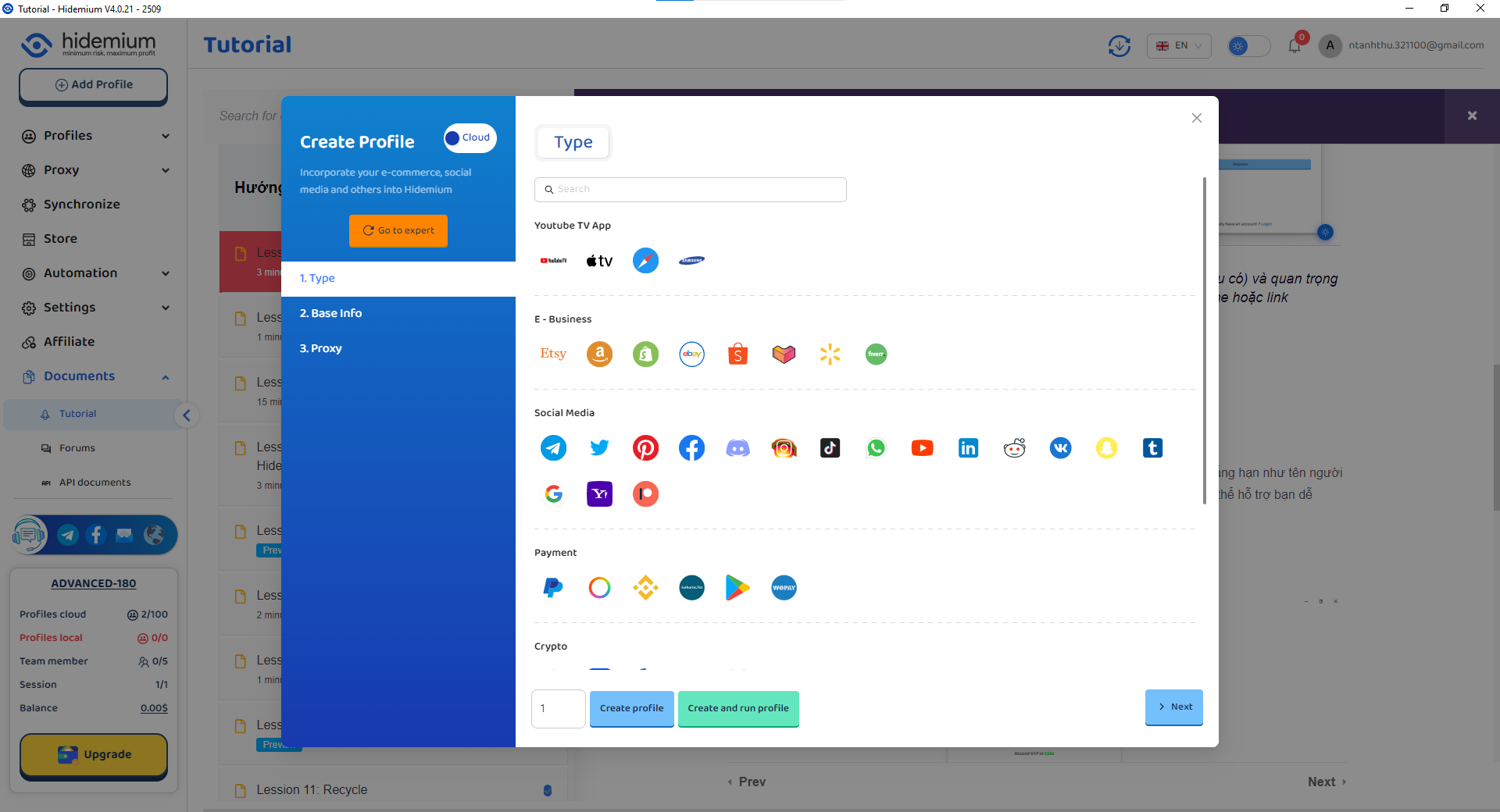
On the creation page, Hidemium will first ask you to select the platform associated with this browser environment.
Choose the platform according to your actual task.
For example, if the environment will mainly be used for a specific website or business platform, select the corresponding platform and click:
Next
to continue.
There is no need to adjust other unrelated settings simply because you are connecting an IPWeb proxy.
Step 5: Enter Basic Browser Environment Information
Next, enter the basic information settings.
Here you can enter a name and notes for the current browser environment.
If you plan to maintain multiple browser environments, it is recommended to use an easy-to-identify naming convention.
For example, if the current environment will use a U.S. IPWeb static residential proxy, you can name it:
IPWeb-US-01
This makes it easier to identify the corresponding location and proxy line when viewing the browser environment list later.
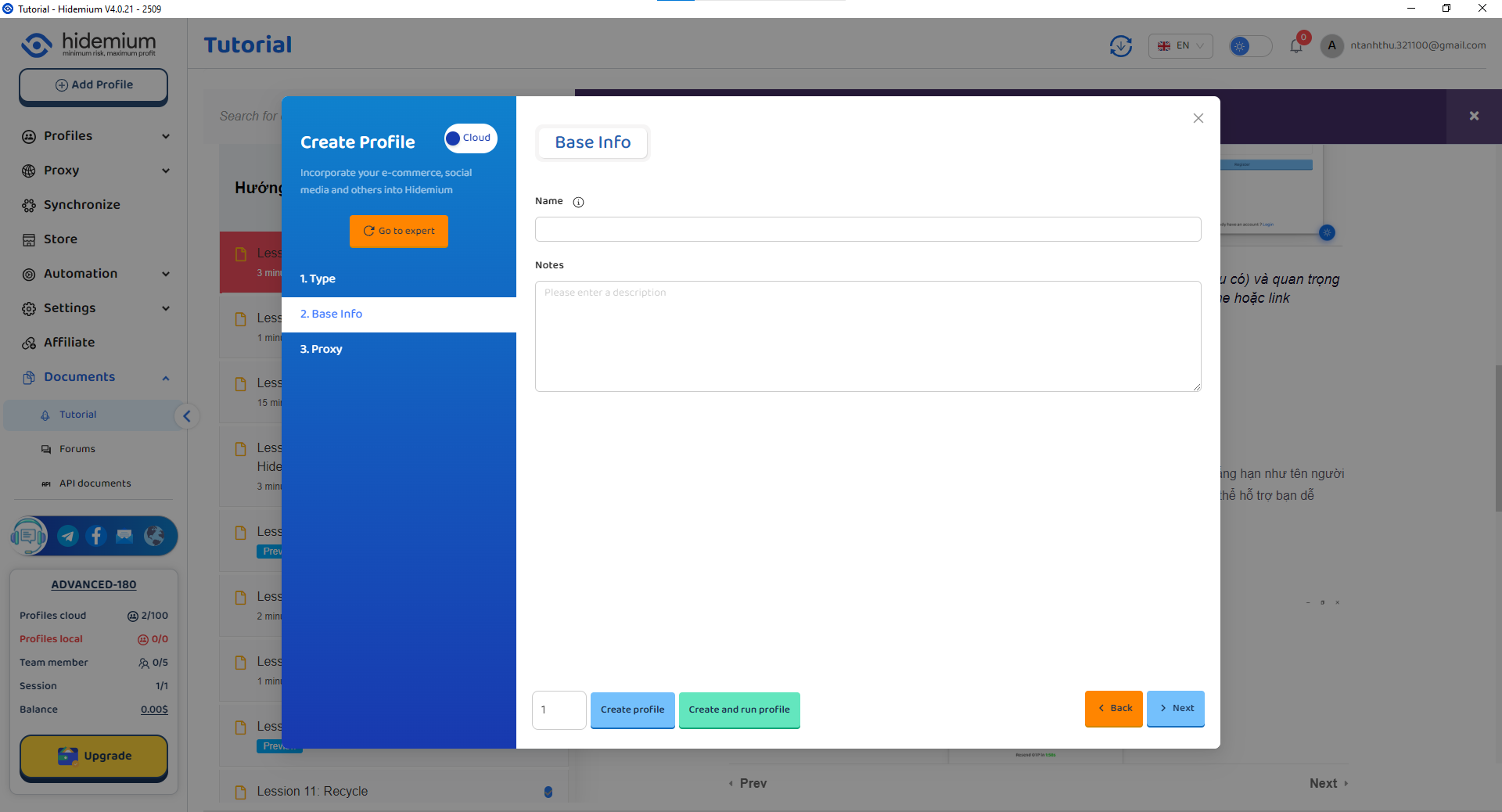
After completing the basic information, click:
Next
to enter the proxy settings.
Step 6: Configure the IPWeb Proxy in Hidemium
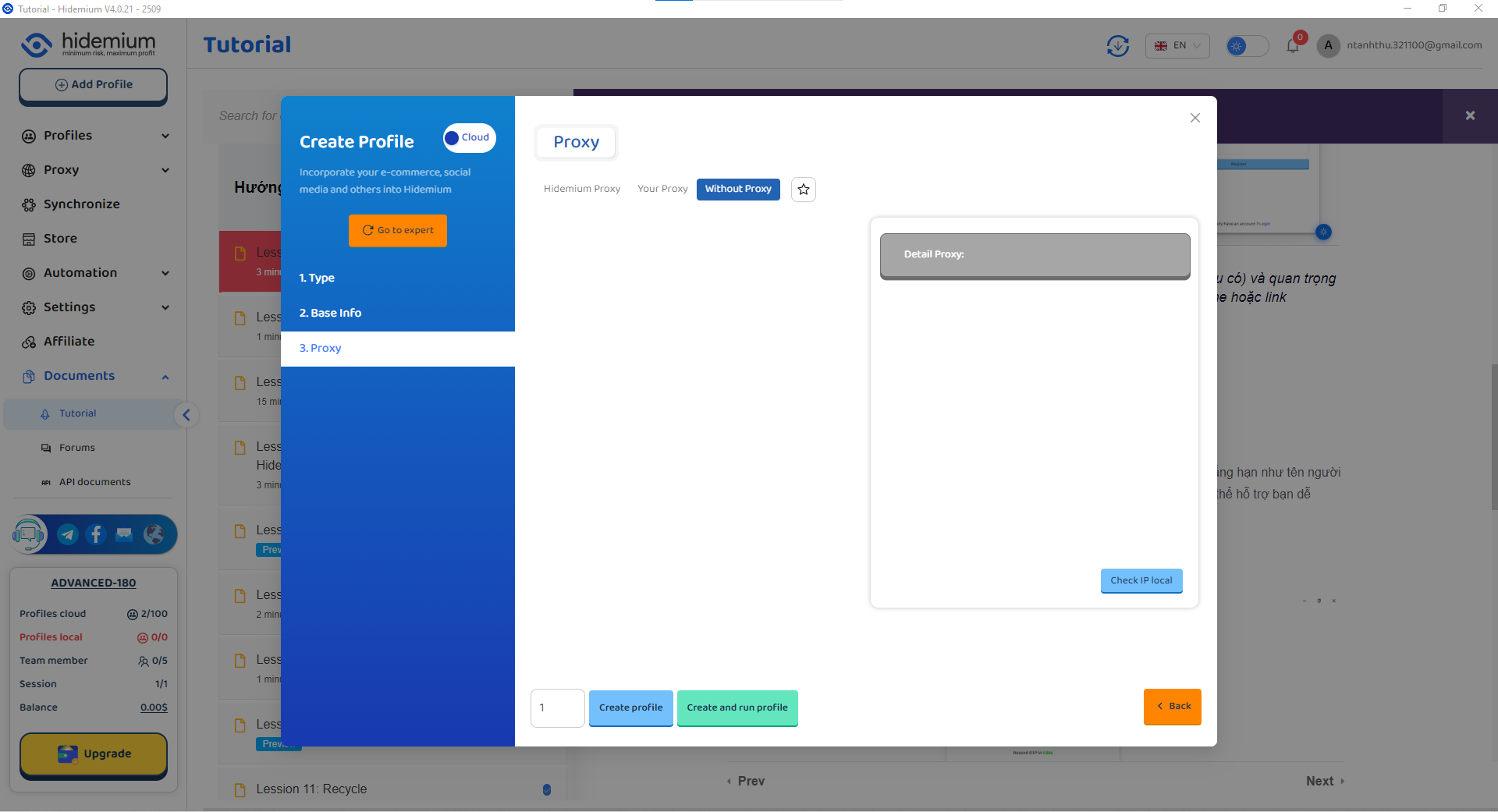
On the proxy settings page, first select the proxy type that corresponds to the connection method used by your IPWeb proxy.
IPWeb static proxies support common protocols such as HTTP, HTTPS, and SOCKS5. Select the appropriate option based on the connection method you are actually using.
For example, if this guide uses SOCKS5, select:
SOCKS5
in Hidemium.
Then enter the IPWeb proxy information prepared in Step 2 into the corresponding fields in Hidemium:
Proxy Host → Enter the proxy host provided by IPWeb
Proxy Port → Enter the corresponding port
Proxy Username → Enter the IPWeb proxy username
Proxy Password → Enter the IPWeb proxy password
It is recommended to copy the information directly from the IPWeb dashboard instead of entering it manually.
Again, the proxy username and password are authentication credentials for the proxy line, not the login credentials for the IPWeb website.
Step 7: Test the Proxy Connection
After entering the proxy information, do not create the browser environment immediately.
Click:
Check Proxy
Hidemium will check whether the proxy can establish a connection normally.
If the proxy host, port, username, password, and proxy type are all entered correctly, you can continue after the test succeeds.
After a successful test, you can select:
Create Profiles
to create the browser environment.
If you want to launch it immediately after creation, you can select:
Create and run Profiles
At this point, the IPWeb static residential proxy has been successfully added to Hidemium.
Step 8: Run the Browser Environment and Confirm the Configuration
After the browser environment has been created, return to the Hidemium browser environment list.
Find the environment you just created and launch it.
After startup, you can check the public exit IP currently being used by the browser.
If the displayed IP matches the static residential IP shown in the IPWeb dashboard, the IPWeb and Hidemium configuration has been completed successfully.
For browser environments that need to be used over a long period, you can continue using the same IPWeb static residential proxy without changing the network exit every time the environment is launched.
3. How to Troubleshoot Proxy Detection Failures
If Hidemium fails to detect the proxy, there is no need to immediately change browser fingerprint settings or other unrelated options.
Start by checking the proxy information below.
1. Check the Proxy Type
Make sure the proxy type selected in Hidemium matches the IPWeb connection method you are actually using.
For example, if you are using SOCKS5, SOCKS5 should also be selected in Hidemium.
2. Check the Proxy Host and Port
Copy the proxy host and port again from the IPWeb line details.
Do not modify them manually, and make sure the proxy host and port are entered into their respective fields.
3. Check the Proxy Username and Password
Make sure you are using the authentication username and password for that specific proxy line.
Do not enter your IPWeb account login credentials by mistake.
4. Check Whether the Proxy Line Is Still Active
IPWeb static residential proxies have a corresponding purchase period.
If the proxy line has expired, Hidemium may also be unable to complete proxy detection.
After confirming the information above, run the proxy test again.
If all proxy information is correct but the connection still fails, you can further check your local network environment or contact IPWeb technical support to confirm the status of the specific proxy line.
4. Advantages of Using IPWeb with Hidemium
Hidemium is mainly responsible for creating, isolating, and managing browser environments, while IPWeb provides the corresponding proxy network exits.
For browser environments that need to be maintained over a longer period, different environments can be assigned to different IPWeb static residential proxies, for example:
Browser Environment A → Static Residential IP A
Browser Environment B → Static Residential IP B
This gives each browser environment a clearly assigned proxy line, making network management, record-keeping, and troubleshooting easier.
If some tasks do not require a long-term fixed IP and instead need more flexible network exit rotation, IPWeb rotating residential proxies can also be selected based on actual requirements. Hidemium manages the browser environments, while IPWeb provides different proxy types and geographic resources, allowing both sides of the configuration to be adjusted according to specific tasks.
5. Conclusion
IPWeb provides a global proxy network covering 220+ countries and regions and 20,000+ cities, with multiple proxy products including rotating residential and static residential proxies. Hidemium, meanwhile, provides browser environment creation and management.
For browser environments that need a long-term fixed network exit, IPWeb static residential proxies can be used. If future tasks require more flexible IP rotation, other IPWeb proxy products can also be selected according to actual requirements.
Related Blogs

In the following analysis, Hidemium will review anti-detection browsers in detail, focusing on three tools from China: YunLark, Maskfog, and VMMask. These browsers are designed to suit the Chinese Internet environment, comply with the “great firewall” and support VPN connections.However, to deploy advertising on international platforms, users often need more advanced tools. This is also the[…]

How to Integrate PiaProxy with Hidemium — Complete Privacy at Your Fingertips In today’s digital world, privacy, stability, and efficiency are essential — especially for marketers, developers, and eCommerce professionals managing multiple accounts and geo-targeted operations. Combining Hidemium with PiaProxy brings a powerful synergy — one that enhances anonymity, bypasses restrictions, and[…]

HubSpot’s latest marketing data shows short-form video consistently ranks among the top ROI-driving formats for marketers. That number only matters if people actually click. For freelancers who bill by the hour, every extra minute spent polishing a thumbnail is time that does not get invoiced elsewhere. I learned this the expensive way.I used to open a design file, stare at a blank frame, and[…]

As campaign scale increases, managing multiple advertising accounts on a single computer becomes a necessity for media buyers and agencies. However, using conventional browsers like Chrome to log into multiple Facebook Ads accounts carries a significant risk of “mass suspension”—a single account violation can potentially impact the entire system.The root cause lies not only in ad content, but[…]

Selling on Amazon offers great profit potential, but success requires the right strategies. With fierce competition among millions of sellers, optimizing Amazon search engine optimization (SEO) and using Amazon Sponsored Products ads are the keys to increasing visibility and achieving sustainable sales growth. This article will guide you on how to increase Amazon sales by combining these two[…]

In the digital age, most of our devices are constantly connected to networks like Wi-Fi or mobile data. Each connection is identified by a MAC (Media Access Control) address. While you don’t need to change your MAC address often, it can affect your privacy and security online.Thanks to the development of technology, methods of protecting digital identity are also increasingly diverse and[…]
