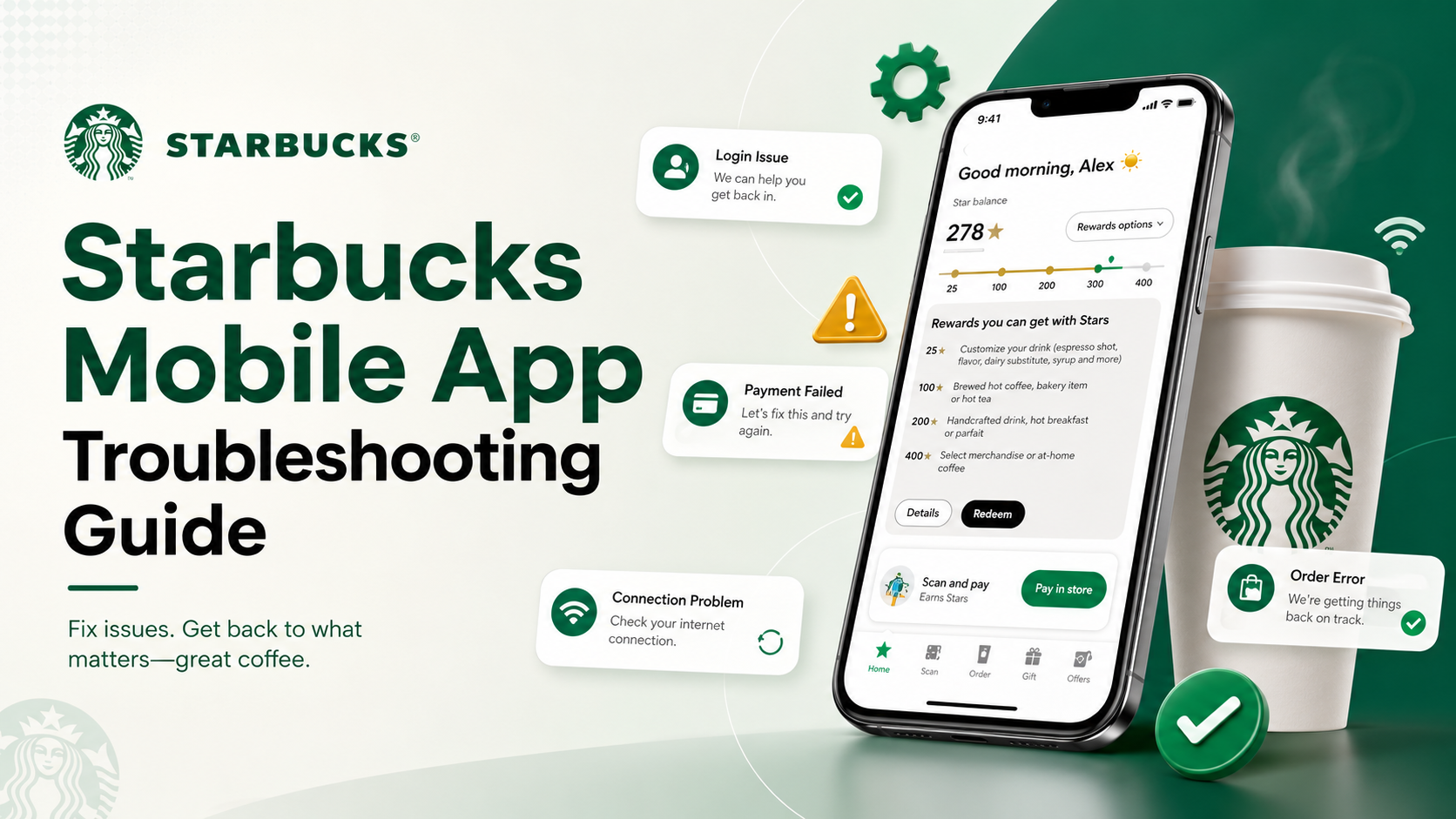

Starbucks Mobile App Not Working? Complete Troubleshooting Guide
Picture this: you're running late for work but desperately need your morning caffeine fix. You reach for your phone to place a quick mobile order — and instead of the familiar menu, you're greeted with a frozen screen, a payment error, or a mysteriously missing rewards balance. Few things are as frustrating as technology standing between you and your coffee.
If you're experiencing Starbucks app issues, you're far from alone. With millions of daily users, the platform occasionally runs into glitches, server overloads, and device-specific conflicts. This complete guide to Starbucks mobile app troubleshooting covers the most common problems and provides clear, step-by-step solutions to get your morning routine back on track.

General App Performance Issues and Crashes
Before jumping to specific ordering or payment glitches, it's worth addressing overall app stability. A sluggish or unresponsive app usually stems from fundamental device-level problems that are easy to fix.
Resolving Connection Errors
If you open the app and immediately see a Starbucks app internet connection error, the app is struggling to reach Starbucks' servers. Here's how to fix it:
- Toggle your connection: Switch between Wi-Fi and cellular data. Public Wi-Fi (including Starbucks in-store networks) can have captive portals that block app traffic until you accept terms via a browser.
- Check airplane mode: Make sure it's not accidentally enabled.
- Force-close and relaunch: Fully closing and reopening the app forces a fresh server connection.
Stopping App Crashes on Android and iOS
A frequently reported issue is the Starbucks app crashing on Android — usually after an OS update or a failed automatic app update. The fix is to clear the app's cached data.
Here are the steps to clear Starbucks app cache on Android:
- Open Settings → Apps (or App Management).
- Find and tap Starbucks.
- Go to Storage & Cache → tap Clear Cache.
- Avoid "Clear Data" on first attempt — that will log you out.
- Relaunch the app.
For iOS users, there's no direct cache button. Instead: go to Settings → General → iPhone Storage → Starbucks → Offload App. This clears temporary data while keeping your login credentials intact.

Overcoming Ordering and Location Glitches
Mobile Order & Pay is one of the app's best features — but when it fails, it can throw off your entire morning. Here's how to diagnose and fix the most common ordering issues.
Why the App Won't Let You Order
If you're wondering "why is my Starbucks app not letting me order?", the root cause is usually store-specific rather than an app-wide failure:
- Inventory sync issues: If a store has run out of an ingredient (like oat milk or a seasonal syrup), that item gets disabled. Remove it from your cart and try again.
- Store operating hours: The location may be about to close, or it may have paused mobile orders due to high in-store volume.
Fixing Unavailable Mobile Order Locations
When a specific location has disabled mobile ordering, the easiest fix is to switch pickup locations. Tap the map icon, zoom out, and select the next nearest Starbucks. Keep in mind that licensed stores (inside Target, airports, or grocery chains) often have separate systems and may not support mobile ordering at all.
Store Locator Not Loading
If the Starbucks app store locator isn't working, the app has likely lost access to your device's GPS. Check your phone's privacy settings and ensure Starbucks has "Precise Location" permission enabled. If the map still won't load, type your zip code manually instead of relying on the auto-locate feature.

Resolving Payment and Digital Wallet Troubles
You've built your perfect custom order — now the digital wallet won't cooperate. Payment issues are among the most common Starbucks app complaints, but most are quick to resolve.
Payment Method Not Working
If your Starbucks app payment method isn't working, the usual culprits are an expired card or a bank fraud flag:
- Update billing details: Navigate to the "Scan" tab → manage payment methods → confirm the billing zip code matches your current bank statements.
- Remove and re-add: Delete the card entirely and re-enter the details from scratch.
Gift Card and Apple Pay Issues
If you're getting an error when adding a gift card, double-check the 8-digit PIN under the scratch-off foil — it's easy to confuse "O" with "0" or "I" with "1". Also confirm the card hasn't already been linked to another account, as Starbucks gift cards can't be shared across multiple digital accounts once activated.
For Apple Pay issues, the fix is usually a tokenization error. Go to iPhone Settings → Apple Wallet → remove and re-add your primary card. Then return to the Starbucks app and retry the reload.
Balance Not Updating
If your balance shows $0 after a reload, it's a visual sync glitch — your money is safe. To force a refresh:
- On the app's home screen, swipe down firmly to trigger a manual refresh.
- If that doesn't work, log out and log back in. The fresh server connection will pull your correct balance.

Account, Login, and Rewards Troubleshooting
Your Starbucks account holds your Stars, payment methods, and order history. Being locked out is stressful — but most login issues have straightforward fixes.
Fixing Login Problems
If you can't log in, the first thing to check is whether you're connected to a VPN. Starbucks' security systems frequently block login attempts from known VPN IP addresses to prevent fraud. Disable your VPN and try again. If your password isn't working, use the "Forgot Password" link and check your spam folder — Starbucks reset emails are often filtered by Gmail and Outlook.
For users who manage multiple apps and accounts across different platforms, a tool like Hidemium can be useful — it's an antidetect browser that lets you keep separate browser profiles with isolated cookies and login environments, so your personal and work accounts never interfere with each other.
Missing Stars and Rewards
If your Stars aren't showing up after a purchase, don't panic. Starbucks officially states that Stars can take up to 24 hours to appear. If it's been longer than that, check the "History" tab to confirm the purchase was charged to your Starbucks Card and not processed as a guest checkout.
Reinstalling Without Losing Your Stars
Many users hesitate to reinstall the app out of fear of losing rewards. You won't. Your Stars, gift card balances, and order history are stored on Starbucks' secure cloud servers — not on your device. Simply delete the app, reinstall it from the App Store or Google Play, and log back in. Everything will be exactly where you left it. For a broader look at how to keep your digital accounts safe and private, see our secure browser guide.
Overcoming In-Store Scanning Problems
The app works perfectly — until you reach the register and the barcode won't scan. Here's how to troubleshoot the Starbucks app scanner at the register:
- Maximize screen brightness: Optical scanners need strong contrast to read barcodes. A dim screen is the most common cause of scan failures.
- Turn off dark mode: An OS-level dark mode setting can occasionally invert barcode colors, making them unreadable.
- Clean your screen: Smudges or cracks over the barcode area — especially on screen protectors — can scatter the scanner's laser.
- Ask for manual entry: Tap on the card in the app to find your 16-digit Starbucks Card number, and read it aloud to the barista. They can type it directly into the register.

When to Contact Starbucks Support
If you've cleared your cache, toggled your Wi-Fi, updated your payment methods, and reinstalled the app — and you're still stuck — it's time to contact official Starbucks support. Persistent issues are worth escalating, especially if they involve missing Stars or an incorrect charge. For broader best practices on keeping your apps and accounts secure, the tips in our guide on managing your account apply equally well to any mobile platform.
To reach support: tap the profile icon in the top right corner of the app → scroll to "Help & Terms" → select "Customer Service." From there, you can start a live chat or find the 1-800 support number. Have ready: your device type, the exact error message, and a list of the steps you've already tried.
Conclusion
Most Starbucks app problems have simple, quick fixes once you know where to look. Whether it's clearing your device cache, refreshing your balance with a swipe, switching your pickup location, or simply disabling a VPN before logging in — the solutions are usually just a few taps away.
The next time your screen freezes or an error pops up, come back to this guide, run through the relevant steps, and you'll be back to ordering your favorite customized drink in no time.
Related Blogs

In the era of rapidly developing e-commerce, many new business models are emerging, including Ghost Commerce stands out as a potential option for beginners. This model not only helps to minimize financial risks, but also facilitates starting a business without much experience. In this article, we will explore what Ghost Commerce is, why this model attracts the attention of many newbies, and how[…]

Facebook Ad Credits are an important concept for those who are running ads on this platform, especially in the context of Facebook regularly launching attractive incentive programs. If you are looking to optimize your advertising budget, this is a tool worth considering. Together Hidemium Find out how to make the most of your Facebook ad credits here!1. What is Facebook Ad Credit?Facebook Ad[…]

In the digital age, increasing YouTube comments has become an essential platform for sharing content and engaging with your audience. Comment count is not only a measure of viewer engagement but also an important factor in improving your video’s ranking on the platform. Here are 5 effective ways to increase comments on your YouTube videos.1. Ask smart questions to encourage viewers to commentWhen[…]

Accessing blocked websites in Vietnam is no longer too difficult if you know how to use it. Proxy through firewall properly. This is an ideal solution, which helps free internet access, just to make sure safety and security of personal information. Together Hidemium Antidetect Browser Discover the 3 most effective methods of using Proxy to bypass firewalls today.1. Use free Proxy websites to[…]

Fiverr is one of the leading marketplaces in the world where employers can hire a freelancer to perform various digital services. Those services range from creating a website or logo for your business to video editing, photo design, video scripting, web analytics, etc.Nearly 4 million people rent digital services on Fiverr each year, and hundreds of thousands of creators make a living on the[…]
.png)
In international flash sale campaigns, where time is of the essence and opportunities are fleeting, having an effective tool to assist in your shopping is incredibly important. Antidetect Browser is the solution that helps you manage multiple accounts and participate in flash sales without the risk of detection. This tool changes browser fingerprints, IP addresses, and personal identification[…]
