




Customers can increasingly ask AI to find products, compare options or help with actions on a website. If product information is unclear, the address form is hard to use or shipping fees only appear at the last step, both customers and automated tools can get stuck.
Microsoft Clarity analyzed more than 5.2 million sessions involving AI agents between August 13 and September 9, 2026. In its data, the number of sessions with agents grew 88% over three weeks, and the most frequently recorded action was checkout, which appeared in more than 306,000 sessions. These figures need to be read carefully: Clarity cannot separate the agent's actions from the human's within the same session, so this is activity recorded in sessions involving agents. It does not prove that an agent completed a transaction on its own. The data also comes from Clarity alone and does not represent every website.
So how can you tell whether the buying journey on your store is easy to follow and works correctly in each market? This guide shows you how to audit the journey from the product page to the order total using Hidemium profiles.
Quick answer
Create a separate profile for each market, with a proxy in the matching country if your store detects the market from the visitor's IP. Use the same URL, product, variant and quantity in every profile, and check that:
- The product page shows the correct language, price and currency.
- The store accepts the test address and shows a delivery method.
- Shipping fees, taxes, discounts and the order total are presented clearly.
Record your findings and stop before placing a real order. Hidemium profiles help you audit separate browser sessions. They do not replace testing directly with a specific AI agent.
Concept and scope
An AI shopping agent is an AI tool that can assist with some online shopping tasks, such as searching for and comparing products and, in some cases, interacting with websites. Capabilities vary from agent to agent, so don't assume every agent can place an order or pay.
Hidemium profiles in this guide are used to check your website in separate browser sessions for each market. You can observe how the store displays the product page, forms, delivery methods and order total.
This check helps you find content and user-experience problems. It does not prove that a specific AI agent can complete a transaction. To confirm that, you need to test the agent or integration you plan to support, in an environment where you are allowed to do so.
When you check your store in the US, Germany or Japan, note every point that makes it hard for customers or automated tools to continue, from the product page to the order total.
Step-by-step guide
Step 1. Prepare the product and an expectations table
Choose a product that is in stock. Fix the SKU, variant, quantity and discount code, if any. If you are testing an ad, use the exact URL customers land on after clicking.
Build an expectations table for each market, covering price, currency, tax, delivery area, shipping fee and free-shipping threshold. Prepare test addresses you are permitted to use, along with sample data for the required fields.
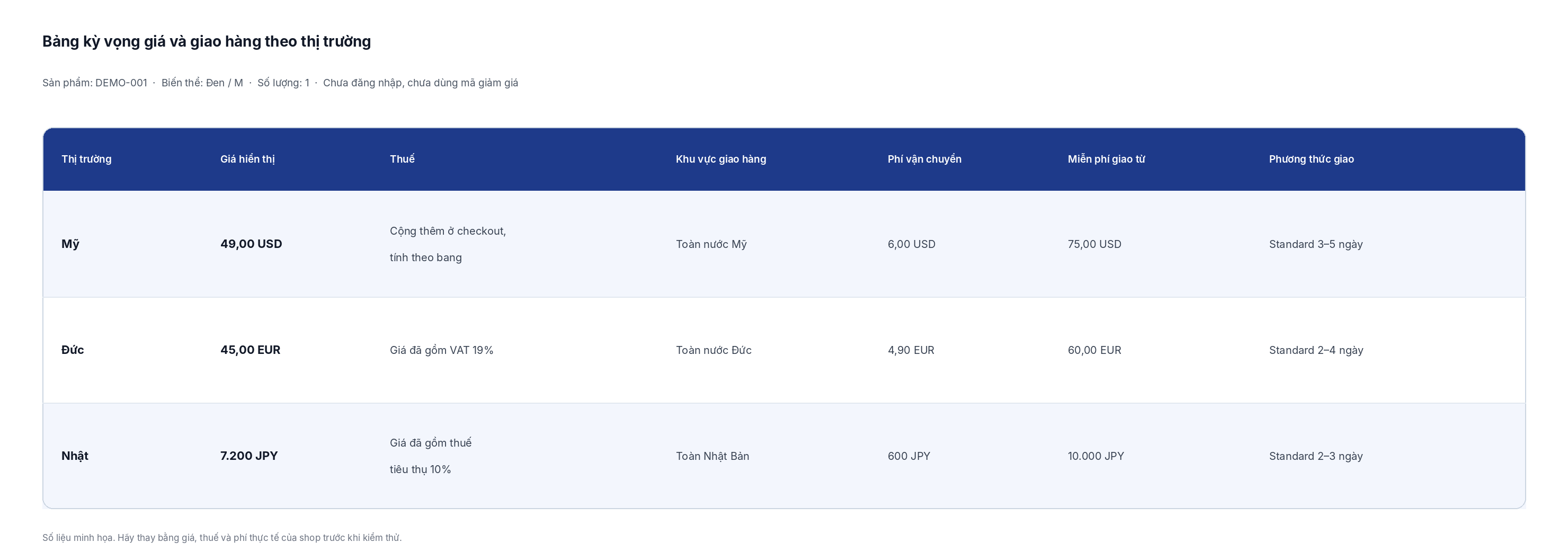
Step 2. Create a separate profile for each market
Create one Hidemium profile for each market you want to test, for example the US, Germany and Japan, and use a fresh session if you want to see the experience of a logged-out visitor.
If your store chooses the market by IP, assign a proxy in the matching country to the profile, set a matching language and time zone (if the profile settings offer them), and record the IP location before opening the store. If you want to test the experience after a customer picks a country themselves, use the store's market selector.
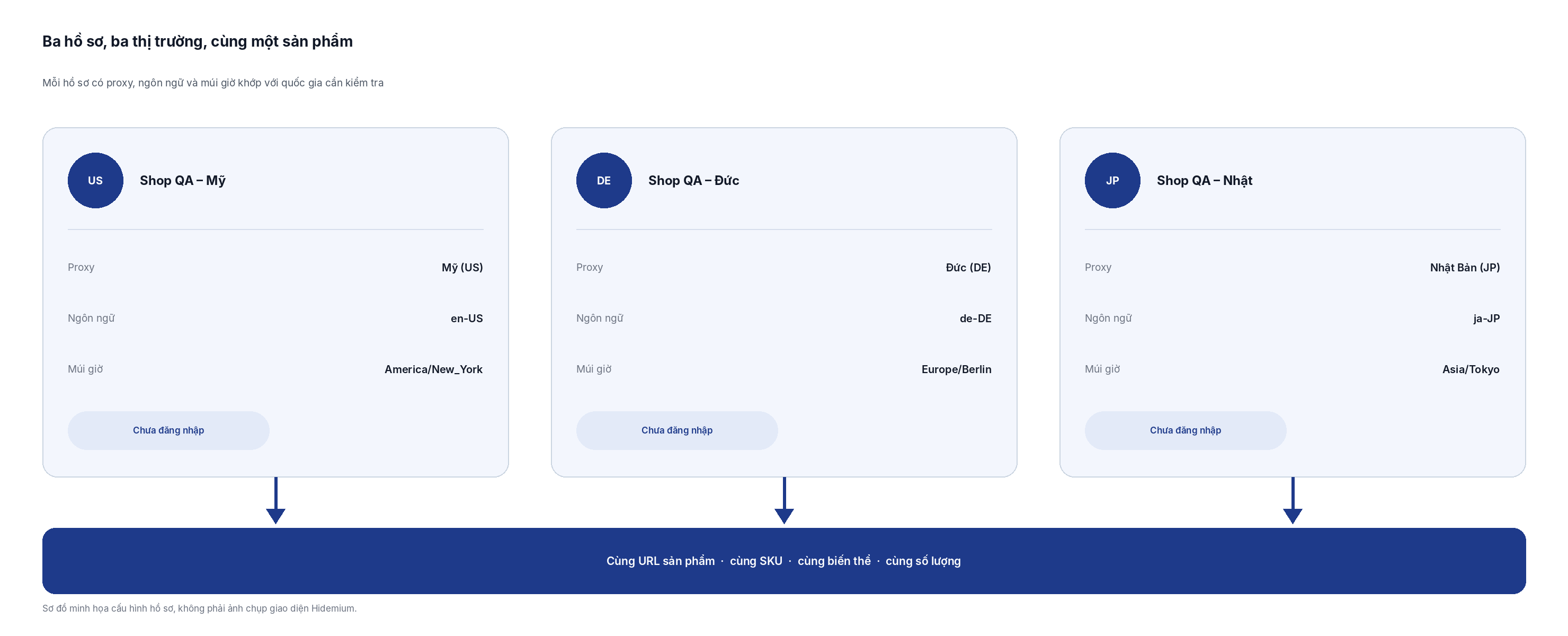
Step 3. Check the product page
Open the same URL in each profile. Before changing the country or language, record the initial state:
- Language, currency and price.
- Product name, variant and stock status.
- Tax or delivery information near the buy button.
- Elements that can block interaction, such as a cookie banner covering the button on a small screen.
If the store has a country selector, choose the market you want to test and note separately what changes. Take screenshots before and after selecting so you can pinpoint when differences appear.
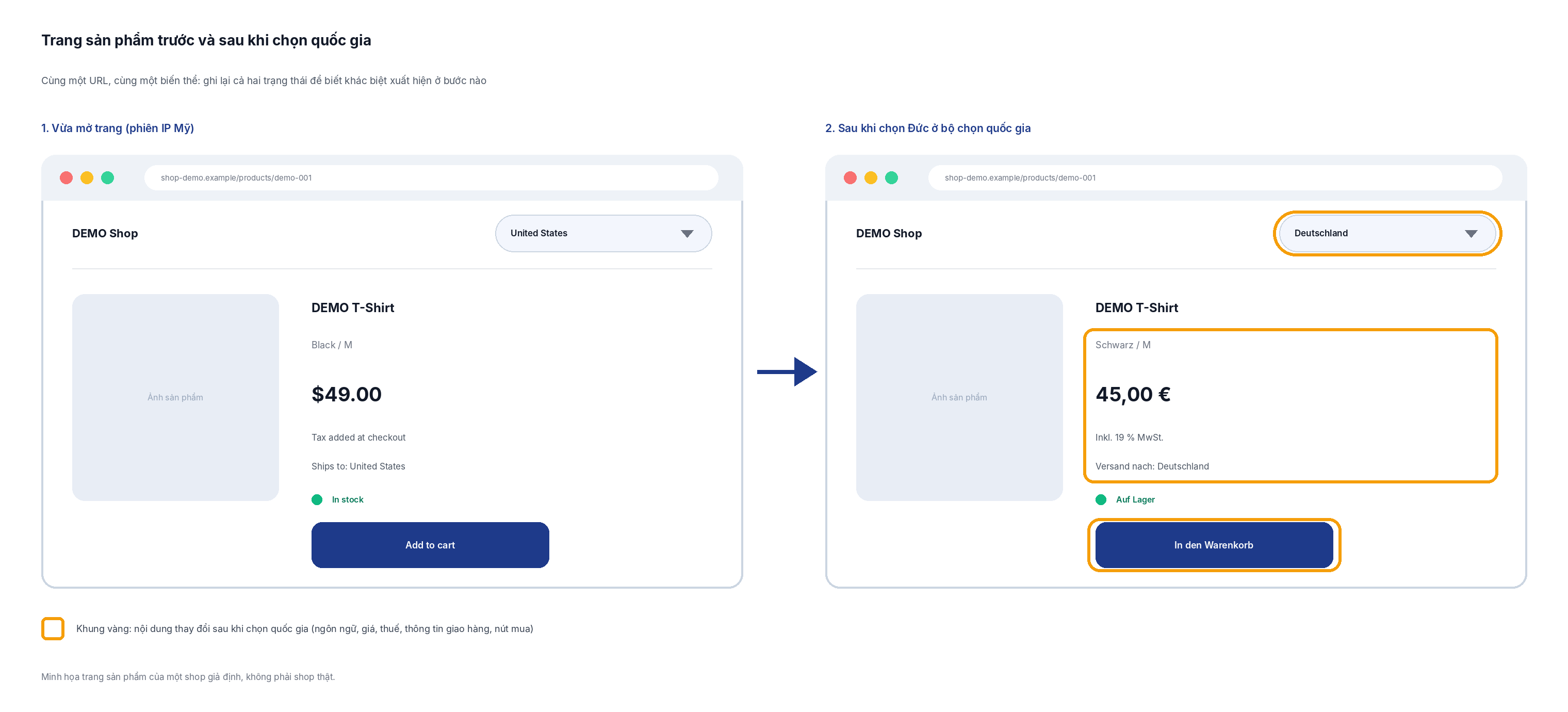
Step 4. Test the cart and shipping address
Add the same variant in the same quantity to the cart in each profile, then go to the address step using test data you are permitted to use.
Check whether the form explains the expected format, accepts the address and shows a delivery method for that area. Pay attention to fields that often differ between countries: ZIP code and state in the US, postal code (PLZ) and house number in Germany, and postal code and prefecture/city in Japan. If an error appears, save the message text, the field name and the action you took just before it appeared.
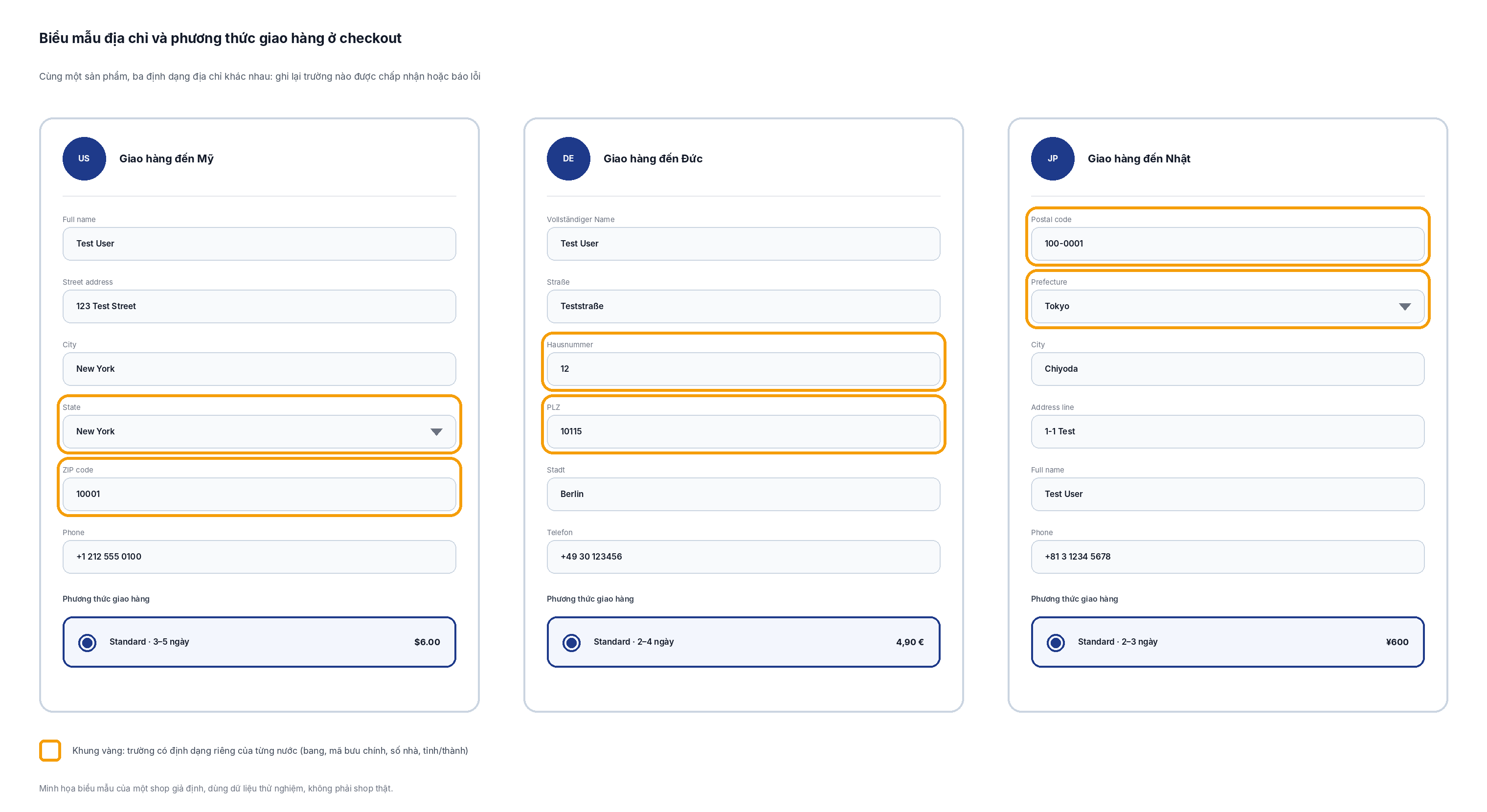
Step 5. Check fees and the order total
Record the product price, discount, shipping fee, tax and order total. If you use a promo code, enter the same code in every session and save any message or conditions that appear.
Stop before confirming the order if your goal is only to check prices and delivery. If you need to test payment, use the store's test environment.
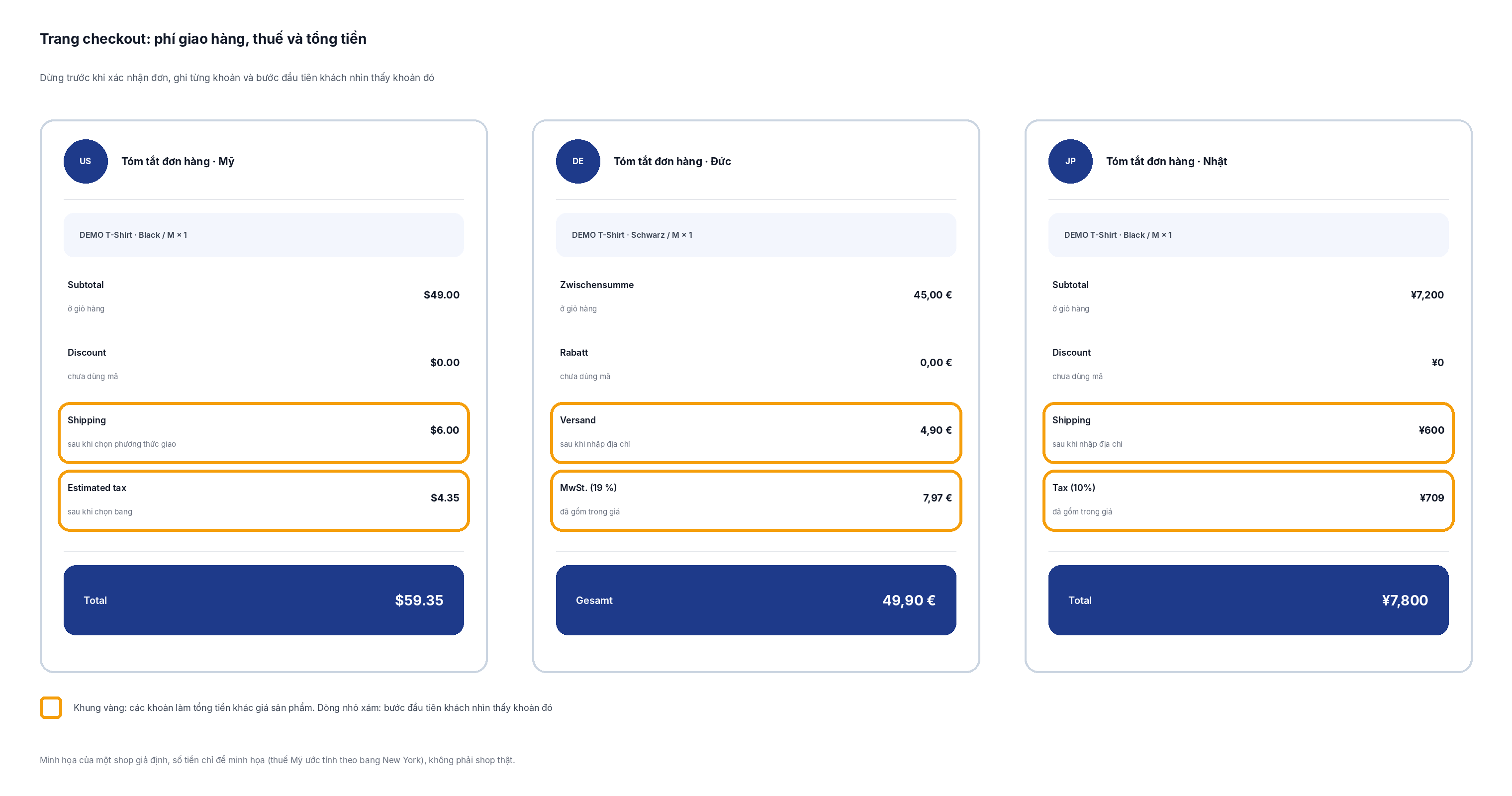
Where AI agents and customers tend to get stuck
As you audit, watch for the following points, since they make things harder for people and automated tools alike:
- Hard-to-select variants: colors or sizes that are unclear or only appear after several actions.
- Forms without guidance: fields with unclear labels, no stated input format, or generic error messages.
- Elements covering buttons: cookie banners, pop-ups or chat widgets covering the buy button on small screens.
- Barriers to continuing: being required to log in or verify before seeing fees.
- Late-revealed costs: shipping or tax that only appears at the final step.
After auditing the website side with Hidemium, you can take the next step and see how real agents behave on your store. Microsoft Clarity, for example, has an Agent Activity dashboard showing which agents visit and what actions they take, along with simulated tests for tasks such as checkout. Only test in environments where you have permission.
How to read the results
Compare each session with the expectations table you prepared. You can record results with a table like this (the US row is an illustrative example):
| Market | Price and currency | Address accepted | Delivery method | Tax and fees | Total |
|---|---|---|---|---|---|
| US (example) | Price and currency on the product page | Yes | Name of the delivery method | Tax at the state step, shipping at the delivery step | Amount at the final step |
| Germany | Record from the product page | Yes/No | Method name or not yet shown | Record each item | Record the amount |
| Japan | Record from the product page | Yes/No | Method name or not yet shown | Record each item | Record the amount |
When the total differs from the price on the product page, check in this order:
- Product price: does it change after selecting a variant or market?
- Discount: is the promo code applied, and does it meet the conditions?
- Shipping fee: does the fee appear after entering the address or choosing a delivery method?
- Tax: does the store make clear whether tax is calculated or only estimated?
- Total: is any amount unexplained or unexpected?
If you can't explain the difference, record the first step where the amount changes and save screenshots from before and after that step.
Special situations
All three profiles show the same version of the store. First, confirm the IP of each session if you are testing automatic market detection by IP. Then try the country selector and record the price, currency and language before and after selecting. The store may share one product page across several countries and apply delivery rules at checkout, so if the product pages look the same, continue to the address step to check delivery methods and costs.
A valid address is rejected. Save the test address, the format you entered and the exact error message. Check whether the form requires hyphens, spaces or required fields in the local format. Don't conclude that every address in the market fails based on a single attempt. Repeat with other test data if you are permitted to.
No fee or total appears. Some stores only calculate fees after they have an address or a delivery method. Record the last step you completed, the missing information and the store's message. If there is still no total, mark the result as unconfirmed rather than treating it as a zero fee.
Common mistakes
- Assuming three identical profiles mean the store doesn't support three markets. The store may share one catalog and only apply delivery rules when the customer enters an address. Check all the way through to checkout.
- Changing several settings at once. If you change IP, language and country together, it is hard to tell which one changed the page. Record each attempt separately.
- Comparing different products or variants. Prices and fees can differ by SKU, quantity or product options. Keep these fixed.
- Treating one successful run as proof that any agent can do it. In Visa's shopping benchmark, 22 AI models passed an average of 57.2% of attempts, with the best models at 82.2% and the weakest at 28.9%. The benchmark measures how well models identify a buyer's needs and decide on the right purchase, not payment. The results show that capability and consistency vary across models and runs.
- Placing a real order to check the total. You can usually stop once you can see the delivery method and the total. If you need to test payment, use the test environment.
Practical checklist
- [ ] Choose the right URL, SKU, variant, quantity and promo code.
- [ ] Prepare an expectations table for price, tax and delivery for each market.
- [ ] Create a separate profile for each market; assign a proxy, language and time zone if needed.
- [ ] Note how the store identifies the market: by IP or by the customer's choice.
- [ ] Save the product page state before and after changing the country.
- [ ] Check the address form and error messages.
- [ ] Confirm the delivery method for the test address.
- [ ] Record shipping, tax, discounts and the total.
- [ ] Take screenshots and note the steps to reproduce any issue.
- [ ] Test payment in a test environment if needed.
Frequently asked questions
Does Hidemium directly simulate an AI agent shopping?
No. This guide uses Hidemium profiles to audit a website session by session and market by market. To test a specific AI agent, run that agent separately in an environment where you are permitted to do so.
Do I need to place a real order?
No, not if you only need to check delivery methods and the total. Stop before confirming the order.
Do I need a proxy for each country?
Only if you need to test how the store picks a market by IP. If you are testing after the customer selects a country, use the market selector and the matching test address.
Is one address per market enough?
It is enough for a first pass. If the store has different delivery zones or rate tables within the same country, test one more representative address for each zone.
Conclusion
Start with one flagship product and use the same process for each market. After each run, you should know whether the customer could pick the right product, enter a delivery address and see a clear total cost. Those are also the things an AI agent needs to get through the buying journey.
Separate profiles help you record the experience session by session, save issues and re-test after the store is updated. Download Hidemium to create your test profiles.
Sources: Microsoft Clarity – What AI Agents Do on Websites · Visa Agentic Commerce Benchmark