.png)

In the context of rapidly advancing technology, mastering how to check Proxy and Firewall settings is crucial for protecting personal information and optimizing web browsing experiences. Let’s explore simple methods for checking Proxy and Firewall through detailed instructions in this article.
What Does Check Proxy And Firewall Mean?
The ERR_CONNECTION_REFUSED error is usually caused on the server end, rather than having to do with your attempt at connection. It’s typically a mild issue, and can just be the result of incorrect firewall or proxy server settings. Nevertheless, it can also suggest that something more important has gone wrong, for example, a hacker attack, or unexpected downtime. An unstable internet connection can also be the cause.
Urging you to Check Proxy And Firewall, this prompt lets you know that something is not working right, but without giving further information. This means it’s up to you to find and possibly fix the root problem.
How to Check Proxy and Firewall on Win 10 and Win 11
Proxy and Firewall are essential tools that help manage network traffic and protect systems from external threats. Regularly checking Proxy and Firewall settings is vital to ensure they are functioning effectively and without any security vulnerabilities. Here are detailed methods for checking Proxy and Firewall.
How to Check Proxy Using Free Online Services
To check your Proxy, you can use free online services. Simply open your web browser on your device and visit websites like WhatIsMyProxy, ProxyCheck, or IPFighter. After performing the check, the results will be displayed on the screen, showing you the Proxy's IP address, location, and status.
How to Check Firewall on Win 10 and Win 11
To accurately check the Firewall on Windows 10 and Windows 11, follow these steps:
Step 1: Open Windows Settings
Access the Control Panel or press Windows + X. In the Control Panel, select “System and Security,” then click on “Windows Defender Firewall.”
Step 2: Complete the Check
In the left menu, click “Turn Windows Defender Firewall on or off.” Options will appear, allowing you to turn off the Windows Defender Firewall for both "Private network settings" and "Public network settings."
Check the boxes as shown in the illustration below and click “OK” to save the changes.

How to Check Proxy and Firewall on Macbook
How to Check Proxy on Mac
To check the Proxy on your Mac, click on the Apple icon on your Mac. Access “System Preferences” and select “Network,” then click on the “Advanced” button.
Next, select the Proxy option and make sure none of the options below are checked. Once you've confirmed, click OK. This way, you have quickly checked the Proxy settings on your Mac.

How to Check Firewall on Mac
To check the Firewall on your Mac, follow these steps:
Step 1: Open System Preferences
Click on the Apple icon in the upper-left corner of the screen, then select "System Preferences" from the dropdown menu.
Step 2: Access Privacy & Security
In the “System Preferences” window, select “Privacy & Security.”
Step 3: Check Firewall Status
Click on the "Firewall" tab. If the Firewall is enabled, you will see the message “Firewall: On.” If it is off, you can enable the Firewall by clicking the lock icon in the lower-left corner, entering your administrator password, and selecting “Turn On Firewall.”
Step 4: Configure Firewall Options (if needed)
In the settings section, click on “Firewall Options” to manage which apps are allowed to connect or to enable stealth mode.
Step 5: Close System Preferences
After checking and adjusting the settings, you can close the “System Preferences” window to save your changes and complete the Firewall management process on your Mac.

Things to Keep in Mind When Checking Proxy and Firewall
When checking Proxy and Firewall, there are several important things to keep in mind to ensure the process runs smoothly and effectively addresses connection issues.
First, you should regularly check Proxy and Firewall settings on Windows 11 to ensure they are functioning properly. During this process, make sure that all related software and security rules are up to date. Updating not only adds new features but also fixes security vulnerabilities, helping to enhance the ability to prevent network threats.
If you encounter issues with Proxy or Firewall, do not attempt to fix them yourself; instead, contact your network service provider or system administrator for timely support.

Frequently Asked Questions About Checking Proxy and Firewall
Here are some common questions related to checking Proxy and Firewall, helping you quickly and effectively resolve common issues:
What does the error "Proxy server cannot be found" mean?
This message indicates that the Proxy you are using cannot be found or is not working. You need to check the Proxy settings to ensure the Proxy server is operating correctly.
What does the error "Firewall is blocking this connection" mean?
This error means that your Firewall is blocking the connection to a website. You need to check the Firewall settings to ensure that the website is not on the block list.
Can a Firewall block Proxy checks?
Yes, this depends on the configuration and policies of the Firewall. Some Firewalls are set up to block certain types of Proxy or intermediary servers to restrict access to websites or services. This method is called "Firewall Proxy Blocking."
If I can't access certain websites, could the Proxy or Firewall be blocking me?
Yes, the Proxy or Firewall may be preventing you from accessing certain websites. Therefore, you should check the Proxy and Firewall settings in Chrome or any other browser to ensure that those websites are not being blocked.

Safe and Effective Proxy Changing Solutions
To manage multiple accounts, especially in fields like MMO, configuring a Proxy becomes crucial for protecting privacy and controlling network access. Currently, Hidemium is the optimal solution that allows users to easily add Proxy to personal profiles and safely and efficiently change IP addresses for their accounts.
With the support of the anti-detection browser Hidemyacc, no website can detect your real identity or IP address, even major websites like Google, Facebook, Amazon, eBay, or Etsy. This software enables the change of Browser Fingerprint parameters, creating different identities, making it easier for you to manage multiple accounts, browse freely, and access accounts without worrying about detection.

Conclusion
Checking and managing Proxy and Firewall settings is essential for protecting privacy and ensuring network security. For tasks that require managing multiple accounts, using Proxy and effective security tools like Hidemium helps you maintain privacy, change IP addresses safely, and easily. Additionally, regularly checking Proxy and Firewall settings helps prevent security vulnerabilities and maintain stable connections. Paying attention to these settings not only protects you from network threats but also creates a safe and efficient online environment for account management and browsing.
If you have any further questions, please contact Hidemium for timely support!
Related Blogs
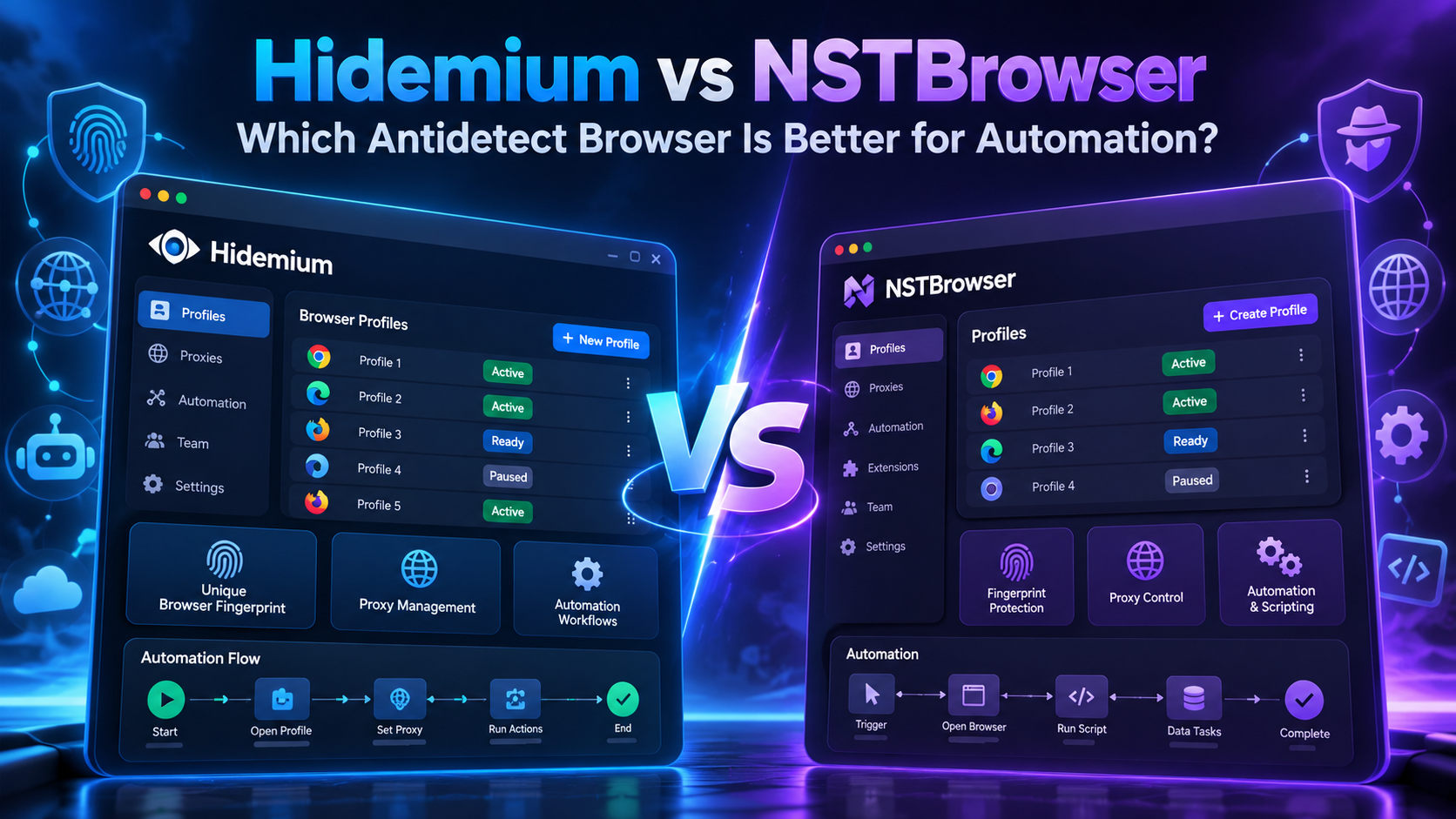
Choosing the right antidetect browser is becoming increasingly important for teams that manage multiple browser profiles, automate repetitive workflows, work with proxies, or operate multiple online accounts.Two platforms that often appear in this conversation are Hidemium and NSTBrowser.Both tools are designed to help users create isolated browser environments, manage multiple profiles,[…]

Cherry Proxy (formerly known as 360Proxy) still maintains its position as one of the services trusted civil proxy on the market. The name has changed, but the core quality has not. If you have used 360Proxy before, you will feel familiar; if not, now is the perfect time to explore it in more detail.In this article, Hidemium will be comprehensively evaluated 360Proxy/Cherry Proxy 2025: from[…]
.png)
Nowadays, websites can easily track user behavior through IP address and device parameters. This means that, even if you have changed your IP or used incognito mode on your browser, the system can still detect that you are logging in and operating multiple accounts at the same time.An effective solution to overcome this situation is to use it antidetect browser – specialized tool to help simulate[…]
.png)
In the context of multi-account management on mobile applications becoming increasingly popular, Geelark Antidetect Browser emerging as a breakthrough solution, specifically designed for diverse needs from affiliate marketing, e-commerce to advertising management. Unlike regular antidetect browsers, Geelark provides an ecosystem cloud phone Unique, realistic Android device simulation, helping[…]

Telegram bị chặn bởi nhà mạng tại Việt Nam đang là chủ đề nhận được sự quan tâm lớn từ cộng đồng người dùng. Sáng ngày 26/5/2025, nhiều người tại Việt Nam bất ngờ không thể truy cập và sử dụng ứng dụng Telegram như bình thường. Điều này gây gián đoạn trong quá trình liên lạc cá nhân, trao đổi công việc cũng như sao lưu tài liệu quan trọng.Nhằm giúp người dùng khắc phục tình trạng này, bài viết[…]

IP checking services today are indispensable tools for protecting your online identity and enhancing your privacy. When you connect to the Internet, your device is assigned an IP address, revealing basic information such as your approximate location, Internet service provider (ISP), and even the type of network you are using.Thanks to the IP checker tool, you can quickly grasp this data in just a[…]
