

How to Protect Against Browser Fingerprinting
Browser fingerprint protection: Quick answer
Browser fingerprint protection is the process of reducing how unique and trackable your browser looks online. The best approach is not one single tool. It is a layered system: use privacy-focused settings, avoid unusual configurations, separate browser profiles, control cookies and storage, keep fingerprint signals consistent, and use a browser profile platform like Hidemium for team-based workflows.
The goal is not to become invisible.
The goal is to reduce unnecessary tracking, avoid exposing unique browser signals, and keep each browsing environment controlled.
What is browser fingerprinting?
Browser fingerprinting is a tracking method that collects details about your browser, device, settings, and behavior to create a recognizable profile.
A website may look at signals such as:
- Browser version
- Operating system
- User agent
- Screen size
- Timezone
- Language
- Fonts
- Canvas rendering
- WebGL rendering
- Audio processing
- Device memory
- Hardware concurrency
- Browser extensions
- IP and proxy behavior
- Cookies and local storage
- Mouse, typing, and interaction patterns
Each signal may look small. But when many signals are combined, they can create a unique browser fingerprint.
That fingerprint can help websites recognize a browser even when cookies are blocked or deleted.
This is why browser fingerprint protection matters.
Modern tracking does not depend only on cookies. It can also use the way your browser behaves.
Why browser fingerprint protection matters

Browser fingerprint protection matters because most users cannot easily see when fingerprinting happens.
Cookies are easier to understand. They are stored in the browser and can usually be cleared.
Fingerprinting is different.
It may happen silently while a page loads. A website can collect browser and device signals without asking the user to download anything or click anything.
Browser fingerprinting may be used for legitimate purposes, such as:
- Fraud prevention
- Account security
- Bot detection
- Risk scoring
- Session protection
- Abuse prevention
- QA testing
- Device recognition
But it can also be used for privacy-invasive tracking.
For users, the concern is being recognized across websites without clear consent.
For teams, the concern is different. They need browser environments that are stable, separated, and consistent for legitimate account workflows, testing, privacy, and operational control.
That is why browser fingerprint protection is not just a privacy topic. It is also an environment management topic.
The wrong way to protect against browser fingerprinting
Many people think fingerprint protection means changing every browser signal randomly.
That sounds logical, but it can create new problems.
A browser that changes too much can look unnatural.
For example:
| Signal | Bad pattern |
|---|---|
| Timezone | Changes every session |
| Language | Does not match region |
| WebGL | Changes while device info stays the same |
| Canvas | Randomizes too aggressively |
| Proxy | Changes without workflow logic |
| Cookies | Mixed across unrelated accounts |
| Extensions | Rare combination that makes the browser unique |
Too much randomization can make your browser stand out.
Good browser fingerprint protection is not about chaos.
It is about controlled consistency.
A protected browser environment should reduce unnecessary uniqueness while keeping related signals aligned.
The best way to protect against browser fingerprinting
The best way to protect against browser fingerprinting is to use a layered protection model.
Think of it as five layers:
| Layer | Purpose |
|---|---|
| Browser settings | Reduce exposed signals |
| Extension control | Avoid unique or risky add-ons |
| Profile isolation | Separate workflows and sessions |
| Signal consistency | Keep fingerprint data logical |
| Team workflow control | Manage access, proxies, and profiles clearly |
No single layer is perfect.
Together, they reduce risk.
This is the core idea behind effective browser fingerprint protection.
Layer 1: Use privacy-focused browser settings
Start with your browser settings.
Most users expose more information than they realize. Some browsers and privacy modes can reduce fingerprinting signals by limiting access to canvas, WebGL, fonts, device details, and tracking scripts.
Useful settings may include:
- Blocking third-party cookies
- Limiting cross-site tracking
- Reducing access to device information
- Disabling unnecessary permissions
- Restricting location access
- Blocking pop-ups and unwanted scripts
- Enabling built-in anti-fingerprinting features
- Clearing site data for sensitive workflows
Privacy-focused browser settings are a good first step.
But they are not enough by themselves.
A browser with strict settings but unusual extensions, mismatched timezone, and unstable proxy behavior can still stand out.
Layer 2: Use fewer browser extensions
Extensions can help privacy, but they can also increase uniqueness.
Every extension you install may affect how your browser behaves. Some extensions modify headers, block scripts, inject code, change canvas behavior, or expose extension-related traces.
A rare extension setup can become part of your browser fingerprint.
For better browser fingerprint protection:
- Use fewer extensions
- Choose trusted extensions only
- Avoid stacking many privacy tools
- Remove extensions you no longer use
- Avoid unusual or outdated add-ons
- Keep extensions updated
- Do not mix too many blocking tools together
More extensions do not always mean more privacy.
A clean browser setup is often safer than a messy one.
Layer 3: Control cookies, storage, and sessions
Browser fingerprinting becomes more powerful when combined with cookies and local storage.
Even if your fingerprint is less unique, cookies can still connect sessions.
To reduce tracking:
- Clear cookies for websites you do not trust
- Block third-party cookies when possible
- Separate personal and work sessions
- Avoid logging into unrelated accounts in the same profile
- Clear local storage for sensitive workflows
- Use different browser profiles for different purposes
- Do not reuse the same profile across unrelated accounts
This is important because privacy protection is not only about fingerprint signals.
It is also about session separation.
A clean fingerprint setup can still fail if cookies and storage are mixed across different workflows.
Layer 4: Separate browser profiles by workflow
One of the strongest browser fingerprint protection habits is profile separation.
Do not use one browser profile for everything.
Instead, separate profiles by purpose.
For example:
| Workflow | Better profile strategy |
|---|---|
| Personal browsing | Personal browser profile |
| Work tools | Work-only browser profile |
| Client account access | Separate profile per client |
| E-commerce stores | Separate profile per store or marketplace |
| Web3 wallets | Separate profile per wallet or project |
| QA testing | Separate testing profiles |
| Research | Separate research environment |
Separate profiles help isolate:
- Cookies
- Local storage
- Sessions
- Login history
- Browser settings
- Fingerprint behavior
- Proxy assignment
- Account workflows
This reduces the chance that unrelated activities become connected.
For teams, profile separation is even more important because multiple people may work across many accounts, projects, clients, or regions.
Layer 5: Keep fingerprint signals consistent
Good browser fingerprint protection does not mean every signal should constantly change.
A browser profile should look stable and logical.
Important signals should align:
| Signal | What to check |
|---|---|
| Timezone | Should fit the workflow or region |
| Language | Should match expected browsing context |
| Proxy | Should be stable for the profile |
| Canvas | Should fit the browser environment |
| WebGL | Should match device and graphics behavior |
| User agent | Should not conflict with OS signals |
| Screen size | Should be realistic |
| Cookies | Should stay isolated inside the profile |
| Behavior | Should be consistent over time |
A profile that changes too much may look unstable.
A profile that stays consistent but isolated is often safer.
This is why fingerprint consistency is a major part of browser fingerprinting protection.
Browser fingerprint protection for individual users
For individual users, the goal is usually privacy.
You may want to reduce passive tracking, limit cross-site recognition, and avoid being followed across the web.
A practical setup may include:
- Use a privacy-focused browser
- Block third-party cookies
- Use trusted privacy extensions
- Avoid too many extensions
- Clear site data regularly
- Turn off unnecessary permissions
- Use separate profiles for personal, work, and sensitive browsing
- Avoid unusual browser settings
- Review fingerprint test results occasionally
You do not need a complicated setup for normal privacy.
A clean and consistent setup is better than an extreme setup that breaks websites or makes you stand out.
Browser fingerprint protection for teams
Teams need a different approach.
A team is not only protecting one browser. It may be managing dozens or hundreds of browser profiles.
Each profile may connect to:
- A client account
- A store
- A marketplace account
- A social media profile
- A Web3 wallet
- A campaign
- A support workflow
- A testing environment
- A remote operator
For teams, browser fingerprint protection means controlling the environment.
Teams need to know:
- Which profile belongs to which account?
- Which proxy is assigned?
- Which workspace does the profile belong to?
- Who can access it?
- Is the profile still active?
- Are cookies and sessions isolated?
- Are fingerprint settings consistent?
- Is the workflow repeatable?
This is where a browser profile platform like Hidemium becomes useful.
Hidemium helps teams manage browser profiles, proxies, workspaces, team access, and controlled environments in one place.
How Hidemium helps with browser fingerprint protection
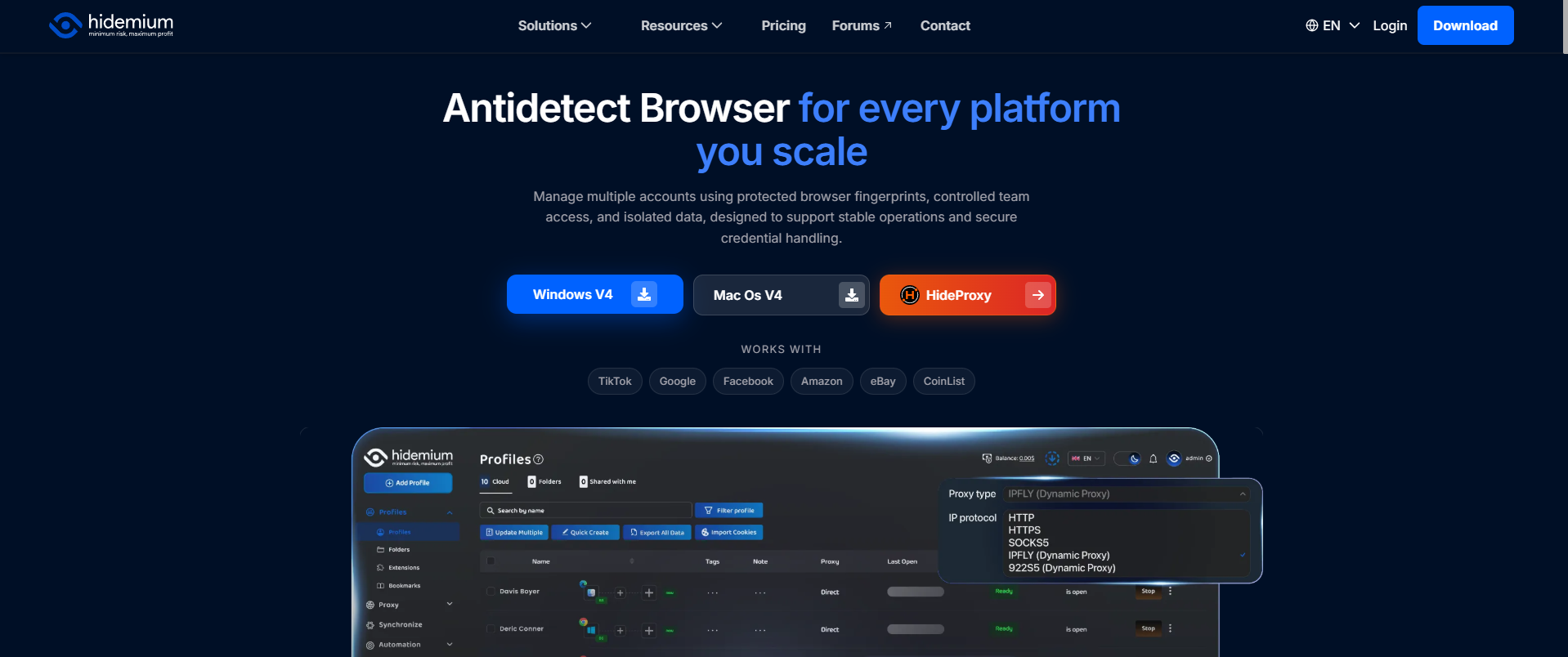
Hidemium helps teams organize browser environments instead of managing profiles manually.
For browser fingerprint protection, Hidemium can support:
- Separate browser profiles
- Controlled fingerprint settings
- Proxy assignment
- Cookie and session separation
- Workspace organization
- Team access control
- Profile ownership
- Repeatable workflows
- Account separation
- Multi-profile management
This is useful when browser profile management becomes part of daily operations.
For example, an agency may need separate browser profiles for each client. An e-commerce team may need separate profiles for different stores. A Web3 team may need separated profiles for wallets and projects.
Without structure, profiles can become messy.
With Hidemium, teams can manage profiles, proxies, workspaces, and access more clearly.
The goal is not to bypass rules or hide abuse. The goal is legitimate privacy, testing, account separation, and controlled browser operations.
What browser signals should you protect?
Browser fingerprint protection works best when you understand the main signal groups.
1. Canvas signals
Canvas fingerprinting uses the HTML5 canvas element to detect small rendering differences.
Protection strategy:
- Use privacy-focused settings
- Avoid unstable randomization
- Keep canvas behavior consistent inside each profile
2. WebGL signals
WebGL fingerprinting uses GPU and graphics rendering behavior.
Protection strategy:
- Keep WebGL settings logical
- Avoid unusual graphics configurations
- Do not randomize WebGL in a way that conflicts with other signals
3. Font signals
Installed fonts can reveal device uniqueness.
Protection strategy:
- Avoid rare font setups
- Use standard environments when possible
- Do not overload profiles with unusual font changes
4. Audio signals
Audio fingerprinting uses small differences in sound processing.
Protection strategy:
- Use browsers with anti-fingerprinting support
- Keep audio-related settings stable
- Avoid unnecessary audio-modifying extensions
5. Timezone and language
Timezone and language are simple but important signals.
Protection strategy:
- Align timezone with workflow context
- Match language with region and profile purpose
- Avoid random mismatches
6. IP and proxy behavior
A proxy changes network identity, but it does not erase browser fingerprinting.
Protection strategy:
- Use stable proxy assignment per workflow
- Avoid changing proxies without reason
- Align proxy region with timezone and language when needed
7. Cookies and storage
Cookies, local storage, and session data can connect activities.
Protection strategy:
- Separate profiles
- Clear unneeded storage
- Avoid mixing unrelated accounts
Browser fingerprint protection checklist
Use this checklist for safer browsing:
- Use a privacy-focused browser or privacy mode
- Block third-party cookies
- Limit unnecessary permissions
- Use fewer trusted extensions
- Avoid rare browser configurations
- Separate browser profiles by workflow
- Keep cookies and storage isolated
- Align timezone, language, proxy, and device signals
- Keep canvas and WebGL behavior consistent
- Avoid aggressive randomization
- Use stable proxies for stable profiles
- Review profile access in team workflows
- Use workspaces for clients, stores, or projects
- Audit old profiles regularly
- Follow platform rules and applicable laws
This checklist is more useful than looking for one magic setting.
Browser fingerprint protection is a system.
Common browser fingerprint protection mistakes
Mistake 1: Thinking a VPN is enough
A VPN changes your IP address.
It does not directly change canvas, WebGL, fonts, timezone, browser settings, or device signals.
VPNs can help with network privacy, but they are not complete fingerprint protection.
Mistake 2: Randomizing every signal
Randomization can help in some contexts, but randomizing too much can create inconsistent signals.
A stable profile should look like the same environment over time.
Mistake 3: Using too many privacy extensions
Too many extensions can create a unique browser setup.
Use fewer, trusted tools.
Mistake 4: Mixing accounts in one browser profile
Using one profile for many unrelated accounts can connect cookies, sessions, and fingerprint history.
Separate workflows need separate profiles.
Mistake 5: Ignoring WebGL and canvas
Many users focus only on cookies and IP.
Canvas and WebGL are important fingerprinting signals and should be part of your protection plan.
Mistake 6: Changing proxies without workflow logic
A proxy should match the purpose of the profile.
Constant network changes can make a browsing environment look unstable.
Mistake 7: Forgetting team access
For teams, fingerprint protection is also about who can access which profile.
Poor access control can create operational risk.
Best browser fingerprint protection setup by user type
| User type | Recommended setup |
|---|---|
| Everyday privacy user | Privacy browser, fewer extensions, cookie control |
| Researcher | Separate testing profiles and controlled settings |
| QA tester | Profiles by environment, device, and region |
| Agency | Profiles by client, proxy, workspace, and operator |
| E-commerce team | Profiles by store, marketplace, region, and team role |
| Web3 user | Profiles by wallet, project, and access level |
| Remote team | Workspaces, team access control, and profile ownership |
Different users need different protection levels.
A solo privacy user does not need the same system as a 20-person agency.
The best browser fingerprint protection setup is the one that matches your workflow.
Do anti-fingerprinting browsers work?
Anti-fingerprinting browsers can help reduce tracking.
They may block or standardize certain browser signals, limit canvas access, reduce WebGL exposure, or make users appear more similar.
But they are not perfect.
They can also create website compatibility issues.
A good anti-fingerprinting setup should balance:
- Privacy
- Usability
- Consistency
- Compatibility
- Workflow control
For normal users, a privacy-focused browser may be enough.
For teams, browser profile management is usually more practical because profiles, proxies, workspaces, and access rules must be managed together.
Is browser fingerprinting protection legal?
Browser fingerprint protection is legal when used for legitimate privacy, security, testing, account separation, and workflow management.
Common legitimate use cases include:
- Personal privacy
- Security research
- QA testing
- Localization testing
- Agency workflows
- E-commerce operations
- Web3 project separation
- Remote team access
- Account separation for compliance and organization
Users should always follow applicable laws and the terms of service of the platforms they use.
Browser fingerprint protection should not be used for fraud, abuse, unauthorized access, or evading enforcement systems.
Summary: Browser fingerprint protection
- Browser fingerprinting collects browser, device, rendering, and behavior signals.
- Browser fingerprint protection reduces unnecessary uniqueness and tracking.
- A VPN alone is not enough.
- Canvas, WebGL, fonts, timezone, language, cookies, and proxy behavior all matter.
- Randomization is not always better than consistency.
- Separate browser profiles help isolate workflows.
- Teams need profile ownership, proxy assignment, workspaces, and access control.
- Hidemium helps teams manage browser profiles, proxies, workspaces, and controlled environments for legitimate workflows.
Conclusion: How to protect against browser fingerprinting
Browser fingerprint protection is not one setting, one extension, or one VPN.
It is a layered system.
Start by reducing unnecessary browser exposure. Use trusted privacy tools. Avoid unusual configurations. Separate browser profiles by workflow. Keep fingerprint signals consistent. Align proxies, timezone, language, cookies, and profile behavior logically.
For individual users, this creates stronger privacy.
For teams, it creates controlled browser operations.
Hidemium helps teams manage browser profiles, proxies, workspaces, fingerprint settings, and team access in one organized platform.
If your team needs better browser fingerprint protection for legitimate account separation, testing, privacy, or daily multi-profile workflows, Hidemium is a strong platform to test.
Try Hidemium to manage browser profiles, proxies, fingerprint settings, workspaces, and team access with more control.
FAQ: rowser fingerprint protection
What is browser fingerprint protection?
Browser fingerprint protection is the process of reducing how unique and trackable your browser appears online. It includes privacy settings, profile isolation, cookie control, signal consistency, and safer browser configuration.
How do I protect against browser fingerprinting?
Use privacy-focused browser settings, block third-party cookies, use fewer extensions, separate browser profiles, avoid unusual configurations, keep fingerprint signals consistent, and manage proxies carefully.
Does a VPN protect against browser fingerprinting?
A VPN hides or changes your IP address, but it does not directly block browser fingerprinting. Canvas, WebGL, fonts, timezone, language, and browser settings can still expose fingerprint signals.
Is browser fingerprinting the same as cookies?
No. Cookies store data in the browser. Browser fingerprinting collects signals from your browser, device, rendering behavior, and settings to create a recognizable profile.
Should I randomize my browser fingerprint?
Not always. Randomization can help in some cases, but too much randomization can create inconsistent signals. Stable and logical browser profiles are often better for controlled workflows.
What is the best browser fingerprint protection method?
The best method is layered protection: privacy settings, fewer extensions, separated browser profiles, cookie control, proxy consistency, and controlled fingerprint settings.
Can Hidemium help with browser fingerprint protection?
Yes. Hidemium helps teams manage separate browser profiles, proxies, workspaces, fingerprint settings, team access, and profile ownership for legitimate privacy, testing, and account separation workflows.
Related Blogs

In the modern e-commerce landscape, Amazon is no longer simply a sales website. By 2026, the platform will have evolved into a complex ecosystem, combining direct retail and intermediary platforms for millions of businesses worldwide.To the average user, Amazon.com looks like a single store. However, behind that is a dual model: it's both a retailer (Amazon sells directly) and a marketplace where[…]
.png)
As internet users become more aware of the need to protect their personal information, hiding IP addresses and maintaining anonymity has become a priority. Whether you're trying to avoid unwanted ads, stay safe from cyber threats, or access restricted content, bypassing an IP ban can be essential. In this article, we'll explore the most popular methods to change or hide your IP address and ensure[…]

Affiliate marketing is currently one of the most popular and sustainable ways to make money online. Whether you are a beginner or a veteran, using the right support tools will help save time, easily manage campaigns and improve conversion efficiency.In this article, Hidemium will introduce 15 top affiliate marketing tools, divided into many groups: tracking & analytics, link management, SEO,[…]
.png)
Why You Might Need Two Venmo AccountsWhether you are launching a new side hustle, organizing payments for a community group, or simply trying to separate your weekend spending from your professional income, you might find yourself wondering about the logistics of your digital wallet. If you are asking yourself, can I have two Venmo accounts, you are certainly not alone. As our financial lives[…]

Have you ever felt tired eyes from constantly staring at the tiny phone screen to text? If so, you are not alone. With nearly 3 billion WhatsApp users worldwide, many of us are also looking for a more convenient solution.The good news is: WhatsApp Web is the perfect choice to help you get rid of that inconvenience. Now, you can chat on a large screen, type faster with a computer keyboard, and[…]

In 2026, major platforms such as Facebook, TikTok, Amazon, and Etsy continue to tighten their algorithms for detecting abnormal behavior. For the MMO (Make Money Online) community, managing multiple accounts on the same device without being detected has become a matter of survival.In this context, proxies are no longer just tools for changing IP addresses—they have become a mandatory component[…]
