

Are you trying to open a Hidemium profile but seeing a message that it is running on another device? This can interrupt your workflow, especially when you need to switch between computers or work with a team.
The message usually means Hidemium still detects the profile as active in a previous session, or the profile data has not finished syncing. This article explains what the error means and how to check and resolve it so you can use the profile safely.
Common causes and fixes
| Cause | Common signs | What to do |
|---|---|---|
| The profile was not closed on the previous device | You recently used the profile on another device | Return to that device, close the profile in Hidemium, and wait for it to stop |
| The data has not finished syncing | The device or backup time shown does not match | Select Check again, back up the profile from the previous device, then sync |
| Another team member is using the profile | The profile is shared with your team and someone recently accessed it | Check with the team member managing the profile, close the previous session, then try again |
| An unfamiliar device is signed in | Device Manager shows a device you do not recognize | Log out that device, change your password if needed, and contact Support |
| You can no longer access the previous device | You cannot check the profile status or back it up from the previous device | Do not edit or delete profile data manually; contact Support for guidance |
What does the “Profile Is Running on Another Device” error mean?

A Hidemium profile is a separate browser environment with its own settings and browsing session. In the Profiles list, you can check a profile’s status and select Start to open it. See the Hidemium Profiles management guide for more information.
When Hidemium says a profile is running on another device, it may still be in use on that device, or the previous session may not have closed or synced completely. This is generally a profile session status issue, not necessarily an internet connection problem.
Why should you resolve this error properly?
Closing the previous session and checking synchronization before reopening a profile can help you:
- Avoid working with inconsistent sessions: Your latest changes may still be on the previous device.
- Reduce the risk of data loss or overwriting: Check the backup status before syncing a profile to another device.
- Control account access: Reviewing signed-in devices can help you spot devices you no longer use or do not recognize.
- Keep your workflow running smoothly: This is useful when switching between computers or when a team shares profile management.
If you are building a workflow with multiple profiles or team members, see How to Build a Multi-Profile Management System with an Antidetect Browser
How to fix the error step by step
Step 1 — Identify the device that last used the profile
Find out which device last opened the profile showing the error. If the profile is shared with a teammate, check whether they are currently using it.
While checking, avoid repeatedly trying to open the profile on multiple devices. Resolve the previous session before starting a new one.
Step 2 — Close the profile on the previous device
If you can access the previous device:
- Open Hidemium on that device.
- Find the profile showing the error.
- Close the profile using the in-app controls.
- Wait for the profile to stop completely. Then sign out of Hidemium or close the app if you are switching devices.
Wait for the profile data to sync before continuing on the new device. See the Local Profile Backup guide for more information about backing up and moving profiles.

Step 3 — Check the backup and sync information
On the new device, if Hidemium shows details about the most recent backup or the device that created it, review them carefully before accepting synchronization.
If the backup time is incorrect or the device shown is not the one you last used, do not accept the sync yet. Select Check again, return to the previous device, back up the profile, and sign out properly before trying to sync again.
Step 4 — Check the devices signed in to your account
If you see a device you do not recognize, open Settings → Device Manager to review the signed-in devices. You can log out an unfamiliar device or enable Local Login to control access.
If you suspect someone else has accessed your account, change your password and contact Hidemium Support.
Step 5 — Reopen the profile and check it
After closing the previous session and confirming that synchronization is complete:
- Open the Profiles list on your current device.
- Find the affected profile and check its status.
- Select Start to open the profile once.
- Confirm that the browser session displays the expected data.
If the error persists, note the profile name, when the error occurred, and which device last used the profile. Send these details to Hidemium Support.
Tips to help prevent this error
- Close the profile in Hidemium before switching to another device.
- Wait for synchronization to finish before opening the profile on a new device.
- Check the device name and backup time before accepting synchronization.
- If you use Local Profile Backup, keep the feature enabled when you need changes to sync to another device.
- Do not manually delete or edit profile data files unless Hidemium Support instructs you to do so.
Frequently asked questions
I shut down the previous computer, but I still cannot open the profile. What should I do?
If possible, restart the previous computer, open Hidemium, and check whether the profile is closed and its data has been backed up. If you cannot access that computer, do not delete the profile data yourself. Send the error details to Hidemium Support.
Should I select “Accept synchronization” as soon as I sign in on a new device?
Proceed only after checking the device and backup time. If the information does not match or the backup is not the most recent one, select Check again and verify the profile on the previous device.
Can I open the same profile on two computers at the same time?
If Hidemium says the profile is running on another device, close the previous session before reopening it on your current device. When switching devices, wait for the profile data to sync.
What should I do if I do not recognize a device in Device Manager?
Log out that device, change your account password if needed, and contact Hidemium Support for further assistance.
Conclusion
The Hidemium “Profile Is Running on Another Device” error is usually related to a previous session that has not closed or synced completely. Close the profile on the previous device, check the backup information, and review the signed-in devices before reopening it.
If you frequently switch profiles between devices, learn more about profile access and management on the Hidemium website. Choose a storage and sync workflow that fits your needs, and check the backup status before switching devices.
Related Blogs

MMO has never been an easy game—especially as platforms like Facebook, Google, Amazon, and eBay continue to tighten their algorithms. If you’re still in the habit of opening dozens of tabs in regular browsers such as Chrome, CocCoc, or Firefox to run jobs, you’re exposing yourself to a very high risk of mass account bans.This article will help MMO practitioners avoid costly losses caused by using[…]

🗓️ Last updated: June 2026Your IP address can reveal your location, internet provider, and parts of your online identity. Whoer helps you check this information in seconds, including your IP address, anonymity score, DNS status, WebRTC leaks, and browser fingerprint.In this guide, Hidemium explains how to use Whoer.net to test your online privacy, verify whether a VPN or proxy is working[…]
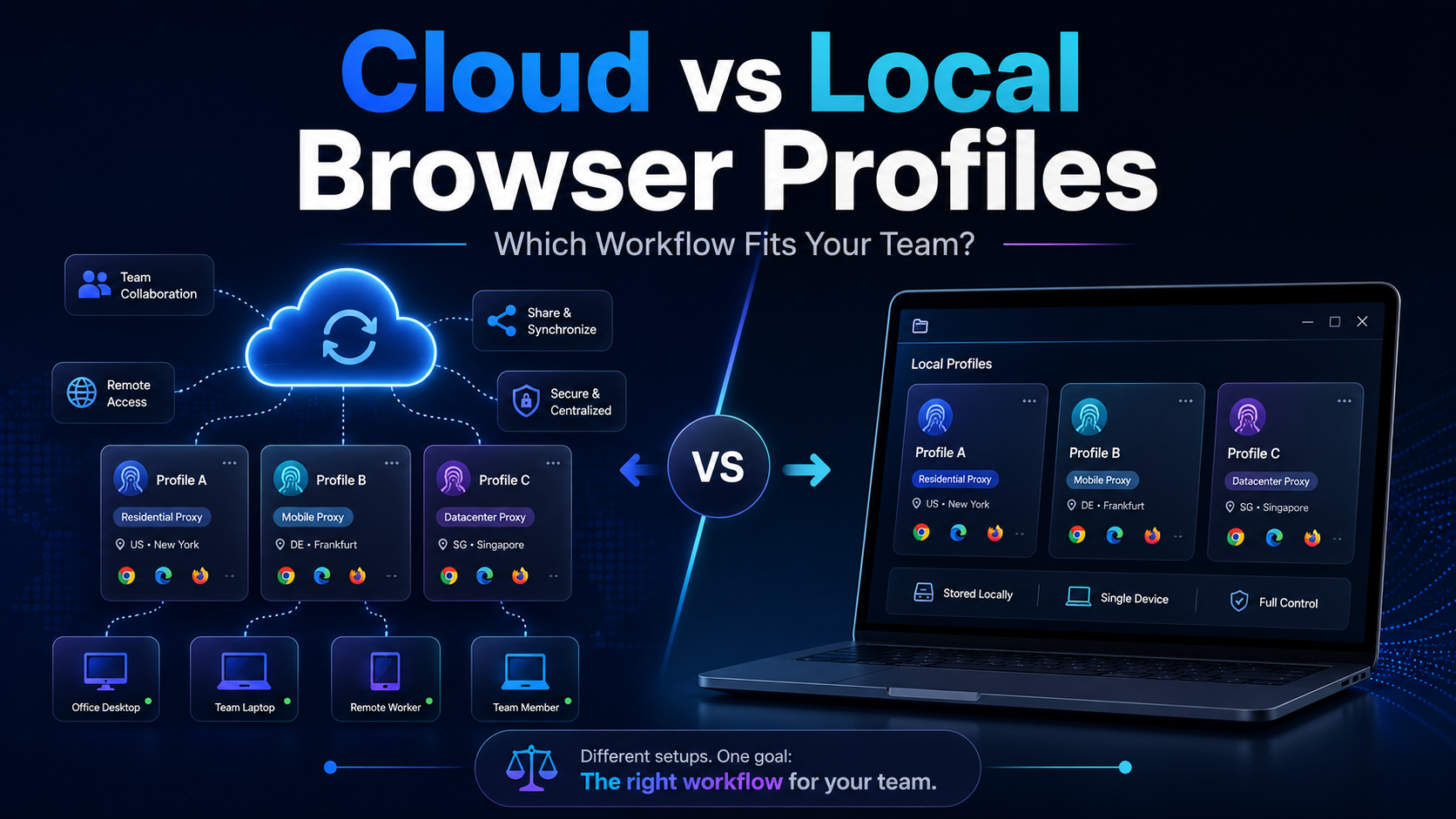
Cloud vs Local Browser Profiles: Which Workflow Fits Your Team?When a team starts managing multiple browser profiles, one of the most important decisions is whether to use cloud profiles or local profiles.Local profiles can be attractive because profile data is primarily stored and operated on the user's device, providing more direct control and reducing reliance on synchronization. Cloud[…]

Captcha is a popular security tool used on websites to prevent suspicious activities from automated programs (bots). However, Captcha can sometimes be frustrating for users, especially when fast access is needed or when the Captcha becomes overly complex. In this article, we will explore 7 effective ways to bypass Captcha in 2025, allowing you to overcome these barriers legally and safely.1. What[…]

How to Get More Views on TikTok: 10 Proven Steps That Actually Work If your TikTok views are stuck or falling, the problem is rarely just “the algorithm.” The issue is usually a mix of content, targeting, and signals TikTok uses to decide who should see your videos.Here’s how to get more TikTok views using a simple system: diagnose what’s wrong, optimize your videos for discovery, post[…]

You want to reach outwardly millions of potential customers and increase sales quickly? Vinted is the online sales platform that you should not miss. Along with the boom of the industry old stuff, Vinted offers the opportunity to reach a diverse group of customers with different budgets and styles.However, this platform also applies strict policy, especially restricting or prohibiting sellers[…]
