

AdGuard DNS is a free DNS service designed to block intrusive ads and protect your devices from online threats. Instead of using the default DNS servers provided by your internet service provider, you can switch to AdGuard DNS to filter malicious content right from the first connection. This not only enhances your browsing speed but also improves your online privacy and security.
In this article, Antidetect Browser Hidemium will explore in detail what AdGuard DNS is, compare it with other popular DNS services, and provide step-by-step instructions for setting it up on Windows, macOS, Android, iOS, and routers.
1. What is AdGuard DNS?

AdGuard DNS is a DNS solution developed by the security company AdGuard, which allows users to:
- Block ads in browsers and apps.
- Prevent access to malicious, phishing, or spyware-infected websites.
- Improve page load speed by eliminating unnecessary ad content.
- Protect personal data, as AdGuard promises not to store users' DNS queries history.
When your device is configured to use AdGuard DNS servers, all your internet traffic is filtered through AdGuard's system before reaching the target website. This helps reduce the risk of tracking, malware infections, and personal data theft while browsing online.
2. AdGuard DNS Server Addresses (Quick Reference Table)
Before configuring AdGuard DNS on any device, note down the correct server addresses for your preferred mode:
| Mode | Primary DNS | Secondary DNS | DNS-over-HTTPS (DoH) | DNS-over-TLS (DoT) |
|---|---|---|---|---|
| Default (blocks ads & trackers) | 94.140.14.14 | 94.140.15.15 | https://dns.adguard-dns.com/dns-query | tls://dns.adguard-dns.com |
| Family Protection (blocks adult content) | 94.140.14.15 | 94.140.15.16 | https://family.adguard-dns.com/dns-query | tls://family.adguard-dns.com |
| Non-filtering (no blocking) | 94.140.14.140 | 94.140.14.141 | https://unfiltered.adguard-dns.com/dns-query | tls://unfiltered.adguard-dns.com |
3. What are the Pros and Cons of AdGuard DNS?
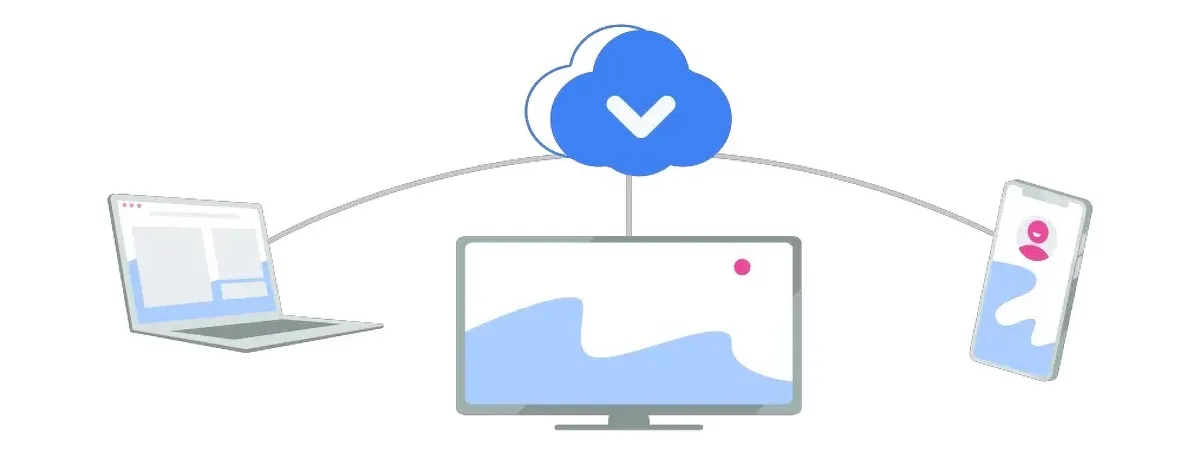
AdGuard DNS is a highly-rated solution for blocking ads and protecting personal data while browsing the Internet. However, like many DNS services, it comes with both advantages and some limitations. The table below will help you better understand and make an informed decision:
| Key Advantages | Considerable Limitations |
|---|---|
| Easy to set up: No need to install additional software or apps – just change your DNS settings and you're good to go. | Cannot block all ads: The free version is not powerful enough to eliminate all web ads. |
| Free and open-source: Users can enjoy the service at no cost, ideal for basic needs. | Some websites are restricted: Sites that require ad-blockers to be disabled may become inaccessible. |
| Enhanced security: Supports modern encryption protocols like DNSCrypt, DNS-over-TLS, and DNS-over-HTTPS to keep personal data safe. | Affects website layout: Blocking ads may leave blank spaces that impact website aesthetics. |
| Content control: Offers two modes – standard and family – to help parents manage children's internet usage. | Only one free option available: Users can choose either DNS or VPN, not both simultaneously unless upgraded. |
| Device compatibility: Works smoothly across smartphones, tablets, and computers. | Limited advanced features: To unlock full functionality, a premium subscription is required. |
| No data collection: AdGuard DNS commits to not logging browsing history or storing user data. | |
| Speeds up browsing: Ad blocking helps improve page load times. |
AdGuard DNS is a solid choice if you're looking for a free, user-friendly tool to enhance browsing privacy and security. However, for more comprehensive ad-blocking and advanced features, upgrading to a paid plan or combining with a VPN service is recommended.
4. AdGuard DNS vs Other DNS Services
Wondering how AdGuard DNS stacks up against other popular alternatives? Here's a quick comparison to help you decide:
| Feature | AdGuard DNS | Cloudflare (1.1.1.1) | Google (8.8.8.8) | NextDNS |
|---|---|---|---|---|
| Built-in ad blocking | ✅ Yes | ❌ No | ❌ No | ✅ Custom |
| Privacy / No-log policy | ✅ Yes | ✅ Yes | ⚠️ Partial | ✅ Yes |
| DNS-over-HTTPS (DoH) | ✅ Yes | ✅ Yes | ✅ Yes | ✅ Yes |
| Family protection mode | ✅ Yes | ✅ Yes | ✅ Yes | ✅ Yes |
| Free tier available | ✅ Full free | ✅ Full free | ✅ Full free | ⚠️ Limited |
| Speed | Fast | Fastest | Fast | Fast |
| Custom blocklists | ✅ (paid) | ❌ No | ❌ No | ✅ Yes |
Bottom line: AdGuard DNS is the best free option if ad-blocking is your priority. Cloudflare wins on raw speed. NextDNS offers the most customization but requires a paid plan for heavy usage.
5. AdGuard DNS Modes: Flexible and Comprehensive Security for Users

AdGuard DNS is not just an ad-blocking tool — it offers various flexible modes, allowing users to tailor their settings to control accessible content and enhance online security. Here are the key modes you can choose from:
- Default Mode: Automatically blocks ads, malware, and harmful websites, providing a safer browsing experience.
- Family Protection Mode: Specially designed for households with children, this mode filters out inappropriate content like adult websites or harmful media.
- No Filtering Mode: Disables all filters and allows you to access any content without interference.
- Custom Mode: For advanced users — manually set up lists of websites to block or allow, giving you complete control over your browsing experience.
- Encrypted DNS Mode (DNS-over-HTTPS/DNS-over-TLS): Enhances privacy by encrypting DNS queries, preventing third parties from tracking your online activity.
- DNS Query Log Mode: Records your DNS query history, allowing you to monitor and track network activity transparently.
6. How to Configure AdGuard DNS on Windows

You can easily configure AdGuard DNS on your Windows PC by following these steps:
Step 1: Access Network Settings
Right-click on the network icon in the bottom-right corner of the taskbar and select "Open Network & Internet settings". Then go to "Network and Internet" and choose "Change adapter options".

Step 2: Select Your Active Network Connection
In the list of connections, right-click on your active connection (Wi-Fi or Ethernet) and select "Properties".

Step 3: Set AdGuard DNS Addresses
Select "Internet Protocol Version 4 (TCP/IPv4)" and click Properties. In the "Use the following DNS server addresses" section, enter:
- Primary DNS server: 94.140.14.14
- Secondary DNS server: 94.140.15.15
Step 4: Save and Finish
Click OK, then Close to save changes and complete the configuration.
7. How to Set Up AdGuard DNS on macOS

If you're using a MacBook and want to block ads, enhance browsing speed, or improve privacy, follow these steps:
Step 1: Open Network Settings
Go to System Settings (or System Preferences for older macOS versions), then select Network.

Step 2: Choose the Network Connection
Select the Wi-Fi or Ethernet connection you want to configure. Click Advanced, then switch to the DNS tab.
Step 3: Add AdGuard DNS Addresses
Click the + icon and add the following DNS addresses:
- Primary server: 94.140.14.14
- Secondary server: 94.140.15.15
Step 4: Save the Configuration
Click OK to save the changes and complete the setup.
8. How to Set Up AdGuard DNS on Android

Android users can configure AdGuard DNS either through the app or manually.
Method 1: Install via AdGuard App
Step 1: Download and install the AdGuard app from the Google Play Store. Once installed, open the app and go to Settings.
Step 2: Select DNS Filtering. Choose AdGuard DNS (94.140.14.14) or AdGuard DNS Family Protection (94.140.14.15) to block ads and filter inappropriate content.
Step 3: Tap Use this server to activate the selected DNS on your device.
Method 2: Manual DNS Configuration
Step 1: Go to Settings > Wi-Fi.
Step 2: Long-press your current Wi-Fi network and tap Modify Network.
Step 3: In Advanced options, change IP settings from DHCP to Static.
Step 4: Enter the following AdGuard DNS addresses:
- DNS 1: 94.140.14.14
- DNS 2: 94.140.15.15
Step 5: Tap Save to complete the setup.
9. How to Set Up AdGuard DNS on iPhone (iOS)
If you're using an iOS device, configuring AdGuard DNS can enhance your security and protect your privacy while browsing.
Method 1: Set Up via the AdGuard App
Step 1: Open the App Store, search for "AdGuard for iOS," then download and install the app.
Step 2: Open the AdGuard app, go to Tracking Protection and enable the feature.
Step 3: Go to DNS encryption, then choose AdGuard DNS or AdGuard DNS Family based on your needs.
Method 2: Manual DNS Setup (No App Required)
Step 1: Go to Settings on your iOS device.
Step 2: Select Wi-Fi, then tap the name of your connected network.
Step 3: Scroll to the DNS section, switch to Manual, and enter:
- DNS 1: 94.140.14.14
- DNS 2: 94.140.15.15
Step 4: Tap Save to complete the setup.
10. How to Set Up AdGuard DNS on Ubuntu
For Ubuntu users, configuring AdGuard DNS helps block ads, protect privacy, and optimize web browsing.
Step 1: Open Network Settings
Go to Settings and select Network.
Step 2: Choose Your Network Connection
Click the active Wi-Fi or Ethernet connection you want to configure.
Step 3: Set Up DNS Addresses
Switch to the IPv4 tab, choose "Automatic (DHCP) addresses only", and enter:
- Primary DNS: 94.140.14.14
- Secondary DNS: 94.140.15.15
Step 4: Save and Apply Changes
Click Apply to save and finish the setup.
11. How to Set Up AdGuard DNS on a Router
Setting AdGuard DNS on your router is the most efficient method — it automatically applies ad-blocking and tracker protection to every device connected to your home network without needing to configure each device individually.
Step 1: Access Your Router Admin Panel
Open a browser and type your router's IP address (usually 192.168.1.1 or 192.168.0.1). Log in with your admin credentials.
Step 2: Navigate to DNS Settings
Look for a section called "WAN Settings", "Internet Settings", or "DNS Configuration" depending on your router brand (TP-Link, ASUS, Netgear, etc.).
Step 3: Enter AdGuard DNS Addresses
Replace the existing DNS servers with:
- Primary DNS: 94.140.14.14
- Secondary DNS: 94.140.15.15
Step 4: Save and Restart
Save your settings and restart the router. All connected devices will now use AdGuard DNS automatically.
12. Frequently Asked Questions (FAQ)
Is AdGuard DNS free?
Yes, AdGuard DNS offers a free tier that includes ad-blocking, tracker protection, and malware filtering. Advanced features like custom blocklists and statistics require a paid subscription.
Does AdGuard DNS slow down internet speed?
No. In most cases, AdGuard DNS actually speeds up browsing by blocking ad requests that consume bandwidth. Response times are comparable to Google DNS and Cloudflare.
What is the difference between AdGuard DNS and AdGuard VPN?
AdGuard DNS only filters DNS-level traffic (blocking ads and trackers at the domain level), while AdGuard VPN encrypts all your internet traffic and masks your IP address. They serve different purposes and can complement each other.
Can I use AdGuard DNS on a router?
Yes. Setting AdGuard DNS on your router applies protection to all devices on your network simultaneously. See Section 11 above for step-by-step instructions.
What are the AdGuard DNS server addresses?
The primary AdGuard DNS address is 94.140.14.14 and the secondary is 94.140.15.15. For Family Protection, use 94.140.14.15 and 94.140.15.16. See the full table in Section 2.
Need help managing multiple browser profiles securely? Hidemium Antidetect Browser provides powerful tools for privacy-focused users who want to separate their online identities effectively.
Related Blogs
Browser Profile Management: A Practical Operating System for TeamsBrowser profile management is often misunderstood as the simple process of creating multiple browser profiles and assigning a different proxy to each one.That approach may work for an individual managing a small number of accounts. However, it becomes difficult to maintain when a team is responsible for dozens or hundreds of[…]

Have you ever wondered why many Amazon sellers are able to generate more revenue? $10,000 per month? In fact, they are not smarter than you, they just know how to Safe business expansion. While most sellers are limited to a single account and struggle to grow, successful ones leverage Multiple Amazon Accounts to capture niche markets and maximize profits.The problem is, Amazon AI system are[…]
.png)
Affiliate marketing has evolved far beyond launching a single campaign and hoping for conversions. Today’s top-performing affiliates often manage multiple accounts across ad platforms, affiliate networks, social channels, marketplaces, and analytics tools to scale offers, diversify traffic, and reduce business risk. But with greater scale comes greater complexity.Multi-account management can[…]

In the current market, when consumers form an opinion about your business by just taking a glance at your visuals, it is essential to pay attention to your brand identity.The logo, brand colors, slogan, and even fonts and text styles are what make your brand stand out. Especially in 2026, when the market is more competitive than ever before, it is essential to create unique features for your[…]
.png)
Beyond the Bot: How to Humanize AI and Safely Bypass AI DetectionThe year 2026 has brought us to a strange crossroads. On one hand, we have large language models that can write poetry, code, and 3,000-word essays in the blink of an eye. On the other, we have an "AI police force"—detectors like Turnitin, Originality.ai, and GPTZero—that are getting increasingly aggressive.If you’re a student or a[…]

In SEO, click-through rate (CTR) is one of the most commonly tracked performance metrics on the search engine results page (SERP). It measures how often people who see your listing actually click it, and SEO professionals use it alongside title tags, meta descriptions, and search intent to judge whether a page's SERP presentation is working. A strong title, a clear match to what the searcher is[…]
