
Moving a browser profile sounds easy:
Export → Import → Open.
But that is rarely the whole story.
A migrated profile may open successfully while the user is logged out, extensions are missing, proxy settings have disappeared, or website data behaves differently.
In other words:
The profile moved, but the working environment did not.
That is why browser profile backup migration should not be treated as a simple copy-and-paste task.
The real question is:
What data actually needs to survive the migration for a browser profile to remain usable?
Quick Answer: What Should a Browser Profile Backup Include?
A useful browser profile backup should preserve the data required to recreate the same working environment.
Depending on the workflow, that may include:
- cookies and login sessions;
- local storage and IndexedDB;
- extensions and extension settings;
- proxy configuration;
- browser preferences;
- bookmarks;
- fingerprint-related settings;
- profile metadata;
- team ownership and permissions.
Not every profile needs everything.
A QA profile may depend heavily on cookies and storage.
An agency profile may depend on session persistence and proxy configuration.
A team profile may need ownership and permissions as much as browser data.
The goal is not to copy every possible file.
The goal is to preserve what makes the profile useful.
What Data Is Actually Inside a Browser Profile?
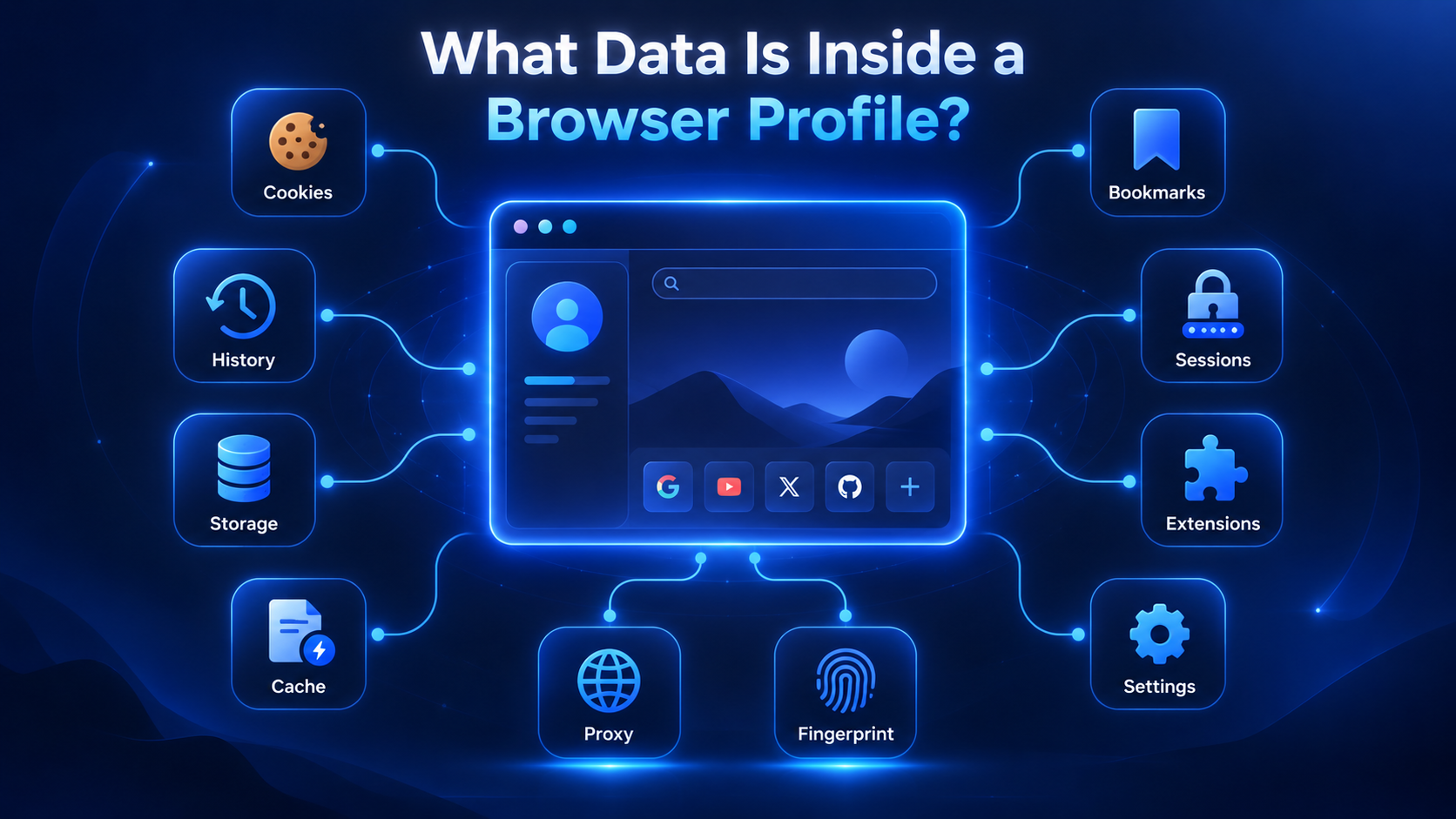
A browser profile is more than browsing history.
It can contain several layers of persistent state, including:
- cookies;
- local storage;
- session storage;
- IndexedDB;
- cached application data;
- bookmarks;
- extensions;
- browser preferences;
- proxy settings;
- account login state;
- profile-specific environment settings.
This is why two profiles running the same browser can behave very differently.
One may contain an authenticated business dashboard.
Another may represent a completely new visitor.
A third may be configured for a specific QA or regional testing environment.
When you export a browser profile, the important question is whether those differences survive the transfer.
Cookies, Local Storage and Sessions: What Matters Most?
Cookies are usually the first thing users notice after a migration.
If cookie data is missing, the most obvious symptom is:
“Why am I logged out?”
Authentication sessions are often stored partly in cookies.
But cookies are only one part of modern browser state.
Web applications may also depend on:
- localStorage;
- sessionStorage;
- IndexedDB;
- authentication tokens;
- service-worker data.
That means transferring cookies alone may not recreate the same environment.
Why cookie-only migration can fail
Imagine a SaaS dashboard stores:
- authentication in cookies;
- interface preferences in localStorage;
- application state in IndexedDB.
If you migrate only the cookies, the user may still be logged in but the application can behave differently.
This is especially relevant for:
- SaaS dashboards;
- e-commerce tools;
- CRM systems;
- QA environments;
- client-management workflows.
A reliable browser profile backup should preserve the storage state that actually matters to the workflow.
When is storage especially important?
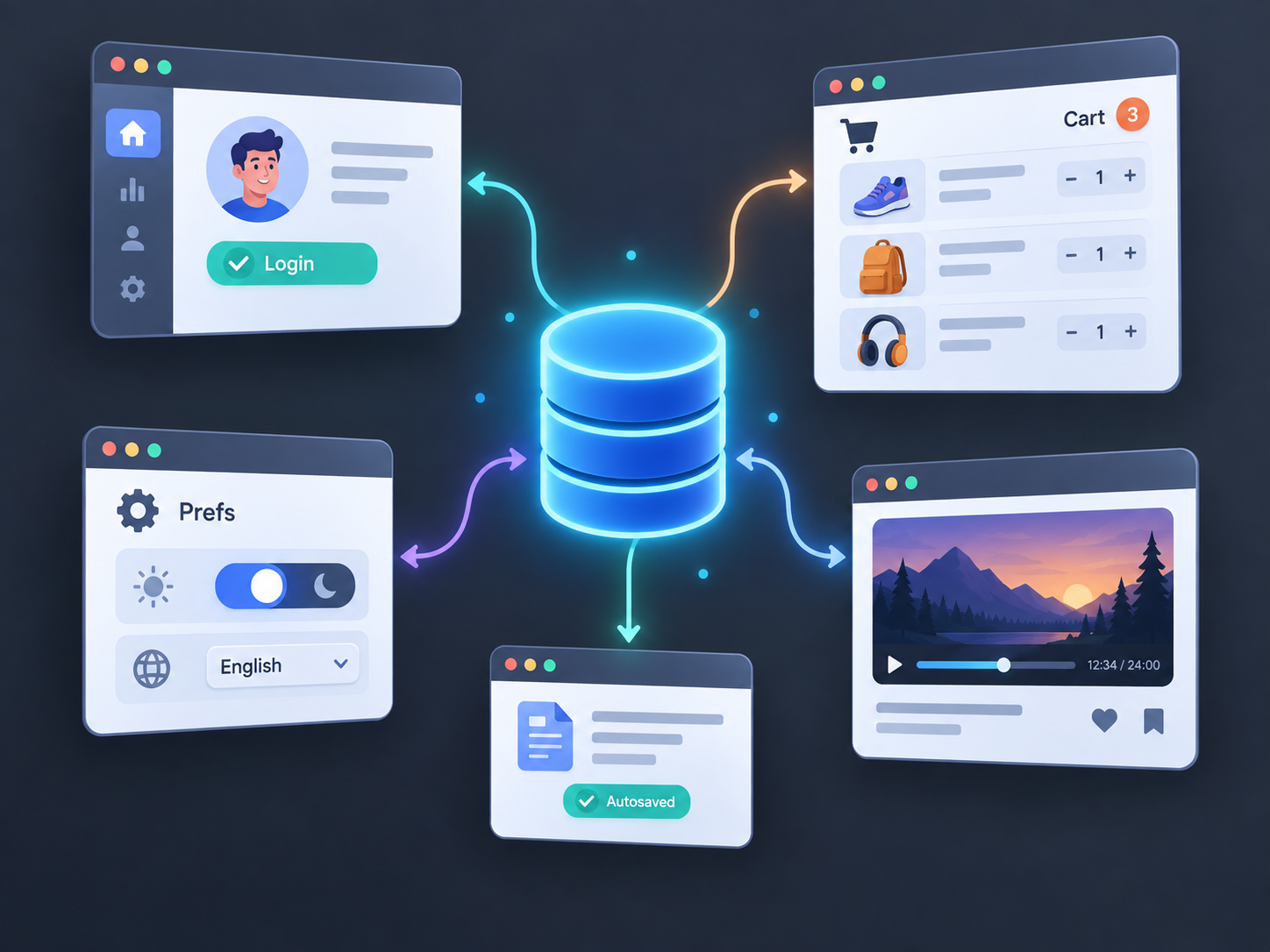
Storage becomes more important when you need to reproduce a specific environment.
For example:
QA testing
→ reproduce a state-dependent bug
Agency workflows
→ preserve client sessions
Customer support
→ maintain a test account
E-commerce
→ keep store and dashboard environments consistent
The more state-dependent the workflow, the more important browser storage becomes.
Should Extensions, Bookmarks and Preferences Be Migrated?
Sometimes.
Extensions can be an important part of a browser workflow.
A profile may depend on:
- password managers;
- analytics extensions;
- QA tools;
- productivity tools;
- security extensions;
- internal company extensions.
But there is an important distinction:
Installing the extension is not the same as restoring its working state.
An extension may still require:
- login credentials;
- API keys;
- permissions;
- workspace settings;
- custom rules.
So after migration, do not only ask:
“Was the extension installed?”
Ask:
“Does the extension still work the way this profile needs it to?”
Bookmarks and browser preferences may also matter.
A client profile might contain links to:
- CRM;
- analytics;
- ad dashboards;
- reporting tools;
- shared files.
Preferences such as language, startup pages, notifications, or downloads can also affect the environment.
Not every profile needs a perfect copy.
It needs the data required for the job.
Proxy Settings: Easy to Forget, Expensive to Rebuild
A browser profile may also use a specific proxy.
That configuration can include:
- protocol;
- host;
- port;
- username;
- password;
- location;
- provider;
- profile assignment.
If proxy settings are lost, a migrated profile may start using the device's normal connection instead.
That changes the network environment immediately.
What should you document?
At minimum:
Profile → Proxy → Protocol → Location
For example:
Client-US-01 → HTTP → New York
or:
QA-DE-Checkout → SOCKS5 → Frankfurt
This becomes important at scale.
Reconstructing five proxies manually may be manageable.
Reconstructing 100 profile-to-proxy assignments is not.
For teams, proxy configuration should be treated as part of the profile inventory rather than something stored only in someone's memory.
What About Browser Fingerprint Settings?
For antidetect browser workflows, fingerprint-related settings may also matter during migration.
A browser environment can include signals associated with:
- User Agent;
- operating system;
- screen resolution;
- language;
- time zone;
- Canvas;
- WebGL;
- hardware-related characteristics.
The exact implementation depends on the browser-profile platform.
The important concept is not maximum customization.
It is consistency.
If a migrated profile suddenly produces a very different browser environment, it may no longer behave like the original profile.
That does not mean every individual fingerprint parameter must be copied manually.
A better question is:
Does the migrated profile reopen with the browser environment you expected?
Migration should preserve intended profile consistency rather than randomly changing values.
Export Browser Profile vs Migrate Browser Profile
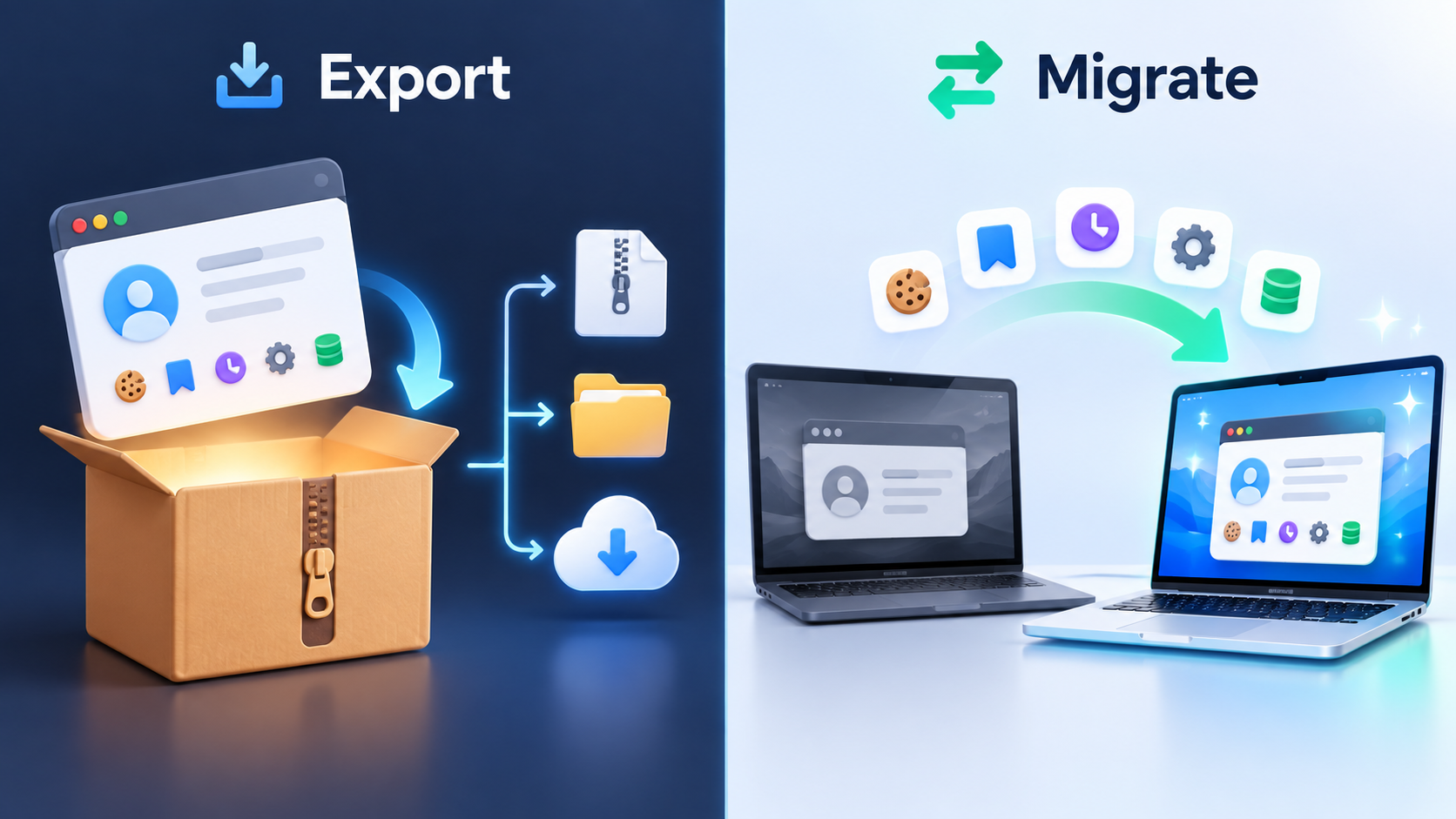
These terms sound similar but describe different stages.
Export browser profile usually means creating a transferable copy of profile data.
Migrate browser profile means moving that profile into another environment and verifying that it still works.
Export is one step.
Migration is the complete process.
A proper migration usually looks like:
- Prepare the source profile.
- Identify important data.
- Export the profile.
- Import it into the destination.
- Restore required configuration.
- Verify browser state.
- Confirm ownership and access.
The final verification is what turns a successful import into a successful migration.
Browser Profile Backup Risks to Plan For
Even if an export completes without errors, problems can still appear after migration.
Session Expiration
Cookies may transfer correctly while the website invalidates the server-side session.
This can happen because of:
- expired tokens;
- account security policies;
- changed network conditions;
- server-side session controls.
A backup cannot guarantee that every website login remains valid forever.
Missing Storage Data
Cookies may transfer while local storage or IndexedDB does not.
The profile may look intact but behave differently.
Extension State Loss
The extension may exist but require authentication or configuration again.
Proxy Misconfiguration
A proxy may not migrate correctly, may have expired credentials, or may require manual reassignment.
Browser Version Differences
Profiles can behave differently after the underlying browser engine changes.
Permission Loss
For teams, browser data may migrate successfully while ownership or access permissions do not.
That is why verification should always be part of the process.
What Should You Back Up Before Migrating?
Use this as a priority guide:
| Data | Priority | Why It Matters |
|---|---|---|
| Cookies | High | Login and site state |
| Local storage | High | Persistent app settings |
| IndexedDB | Medium–High | Complex app data |
| Proxy settings | High | Network consistency |
| Extensions | Medium–High | Workflow functionality |
| Fingerprint settings | High for antidetect workflows | Environment consistency |
| Bookmarks | Medium | Project context |
| Browser preferences | Medium | Usability |
| Team permissions | High for teams | Access control |
| Profile metadata | High | Ownership and purpose |
The priority changes by use case.
A QA profile may prioritize storage.
An agency profile may prioritize sessions and proxies.
A team environment may prioritize permissions and ownership.
Browser Profile Migration Checklist
Before you migrate a browser profile, run through this checklist.
Before Migration
Confirm:
- profile name;
- profile owner;
- purpose;
- current login state;
- proxy configuration;
- important extensions;
- required browser storage;
- browser version;
- fingerprint-related settings if relevant.
During Migration
Check that:
- profile data exports successfully;
- proxy information is recorded;
- extensions are accounted for;
- necessary credentials are available;
- the destination supports the required data.
After Migration
Verify:
- login sessions;
- cookies;
- local storage;
- IndexedDB;
- extensions;
- proxy connection;
- browser environment;
- bookmarks;
- team permissions.
And one important rule:
Do not delete the source profile immediately.
Keep it as a fallback until the migrated profile has been fully tested.
When Is Rebuilding Better Than Migrating?
Migration is not always the right choice.
A fresh profile may be better when:
- the original profile is corrupted;
- sessions are already invalid;
- extensions are outdated;
- the browser environment is obsolete;
- the profile contains large amounts of unnecessary data;
- the workflow has fundamentally changed.
Migrating an unhealthy environment can simply carry old problems into a new one.
The objective is not to preserve old data at all costs.
It is to preserve useful state.
How Should Teams Handle Profile Migration?
For teams, browser migration is also an ownership problem.
A profile may belong to:
- a client;
- a campaign;
- a project;
- a department;
- a QA ticket;
- a team member.
The browser environment should not become permanently tied to one employee's laptop.
A better structure is:
Profile → Owner → Purpose → Proxy → Status
Example:
ClientA-Social → Maria → Active → US proxy
or:
QA-Checkout-DE → QA Team → Regression → DE proxy
This makes handoffs much easier.
If an employee changes roles, the browser environment can move with the project instead of being rebuilt from scratch.
How Hidemium Fits Browser Profile Backup and Migration
As profile libraries grow, migration stops being only about copying browser data.
It becomes a management problem.
Teams need to know:
- what each profile is used for;
- which data needs to survive;
- who owns the environment;
- which proxy belongs to it;
- whether migration has been verified.
This is where structured browser profile management becomes useful.
With Hidemium, profiles can be organized around clients, projects, QA scenarios, or operational workflows instead of existing as disconnected browser sessions.
A practical migration workflow can follow:
Inventory
→ identify active profiles
Backup
→ preserve required data and settings
Migration
→ move the environment
Verification
→ test sessions, storage, proxy, and browser state
Ownership
→ assign the profile to the correct person or team
The goal is not simply to move browser profiles.
It is to keep them portable, understandable, and manageable.
Final Thoughts
A browser profile is not simply a collection of browser files.
It is a working environment.
That environment may depend on:
- cookies;
- browser storage;
- extensions;
- proxy settings;
- browser configuration;
- fingerprint-related settings;
- ownership;
- permissions.
So before starting any browser profile backup migration, ask:
What data must survive for this profile to remain usable?
For some environments, cookies and storage matter most.
For others, proxy settings and fingerprint consistency matter more.
For teams, ownership and permissions may be equally important.
A reliable migration process can be summarized as:
Inventory → Backup → Export → Import → Verify → Assign
Do not consider the process complete simply because the profile imported successfully.
Migration is complete when the working environment still behaves as expected.
If your team manages browser profiles across clients, projects, or QA environments, plan profile migration and management with Hidemium to keep profiles organized, transferable, and easier to manage as your workflow grows.
Frequently Asked Questions
What is browser profile backup migration?
Browser profile backup migration is the process of preserving important browser-profile data, transferring it to another environment, and verifying that sessions, storage, settings, proxies, and workflow state continue to work.
What data should I include in a browser profile backup?
Important data may include cookies, local storage, IndexedDB, extensions, proxy settings, browser preferences, fingerprint-related settings, bookmarks, and profile metadata. What matters most depends on the workflow.
Can I export browser profile cookies?
Many browser-profile tools support cookie export or transfer. However, transferring cookies does not guarantee that server-side sessions remain valid, and some applications also depend on local storage or IndexedDB.
Will migrating a browser profile keep me logged in?
Sometimes, but not always. A website can invalidate a migrated session because of expiration, server-side security controls, or changes in the operating environment.
Is exporting a browser profile the same as migrating it?
No. Exporting creates a transferable copy. Migration includes importing the profile into another environment and confirming that it still works correctly.
Should fingerprint settings be migrated?
For antidetect-browser workflows, preserving a consistent browser environment can be important. The objective should be consistent profile behavior rather than randomly changing fingerprint parameters.
Should I delete the original profile after migration?
Not immediately. Keep the original profile until the destination profile has been completely verified.
Related Blogs
Managing multiple online accounts can become challenging when browser profiles use incorrect proxy settings, display unexpected IP addresses, or experience connection failures. Combining Hidemium with 9Proxy allows you to configure proxy connections for individual browser profiles and manage your browsing environments more efficiently.This guide explains how to set up 9Proxy on Hidemium, verify[…]

Accessing blocked websites is no longer difficult if you know how to properly use a Proxy. This is considered one of the most optimal solutions to bypass internet restrictions while maintaining privacy and personal data security. Let Hidemium walk you through 3 easy-to-apply Proxy methods for firewall circumvention!1. Use web-based Proxy servicesProxy websites act as intermediaries that help hide[…]

IPv6 (Internet Protocol version 6) is the latest version of the Internet protocol, developed to replace IPv4 which is gradually being exhausted. In this article, Antidetect Browser Hidemium will help you learn what IPv6 is, clarify the difference between IPv6 and IPv4, and explore the outstanding benefits of IPv6 in the context of digital transformation and Internet of Things (IoT) development.1.[…]
Mastering Facebook Account Management for Personal and Business UseWhether you are an individual casually connecting with friends or a brand striving to build a loyal community, mastering the art of facebook account management is essential. Facebook has evolved from a simple college networking site into a complex ecosystem requiring both careful personal oversight and strategic business[…]

What Are AI Agents for HR and How to Integrate Them Into an Existing BusinessAnyone who’s worked in HR knows the routine: piles of resumes, endless follow-ups, and calendars packed with interviews that get delayed, cancelled, and end up ruining your schedule daily. The new wave of AI agents for HR and recruiting is quietly changing that.These systems don’t hire or fire on their own. They handle[…]
.png)
How to Use Proxy302’s Proxies with Hidemium Try Proxy302 For Freewith the link:https://share.proxy302.com/hidemiumClick 【Start free trial】 and enter your personal information. Click【Register account】, the account is created successfully. If you have an account, just【Log in】.Why Use Hidemium?Hidemium is a modern antidetect browser trusted by professionals across the globe. It offers strong[…]
