

Public Wi-Fi connections are becoming an indispensable part of modern life, especially when you travel, work remotely or entertain yourself at cafes, airports or shopping malls. However, using public Wi-Fi poses many security and privacy risks. In this article, Hidemium will share 5 simple but effective tips to help you stay safer when connecting to public Wi-Fi, avoiding data theft or personal information tracking.
1. Always use a VPN when connecting to public Wi-Fi
Whether you're at the airport, hotel, or your favorite coffee shop, the first thing you should do when connecting to public Wi-Fi is turn on your VPN.
VPN – Virtual Private Network – is not just a technical tool, but a minimal layer of protection that helps you encrypt all data that travels from your device to the internet. When you do not use a VPN, all information sent and received – including emails, messages, passwords – can be recorded or analyzed by devices on the same network or fake Wi-Fi hotspots.
Why is it dangerous?
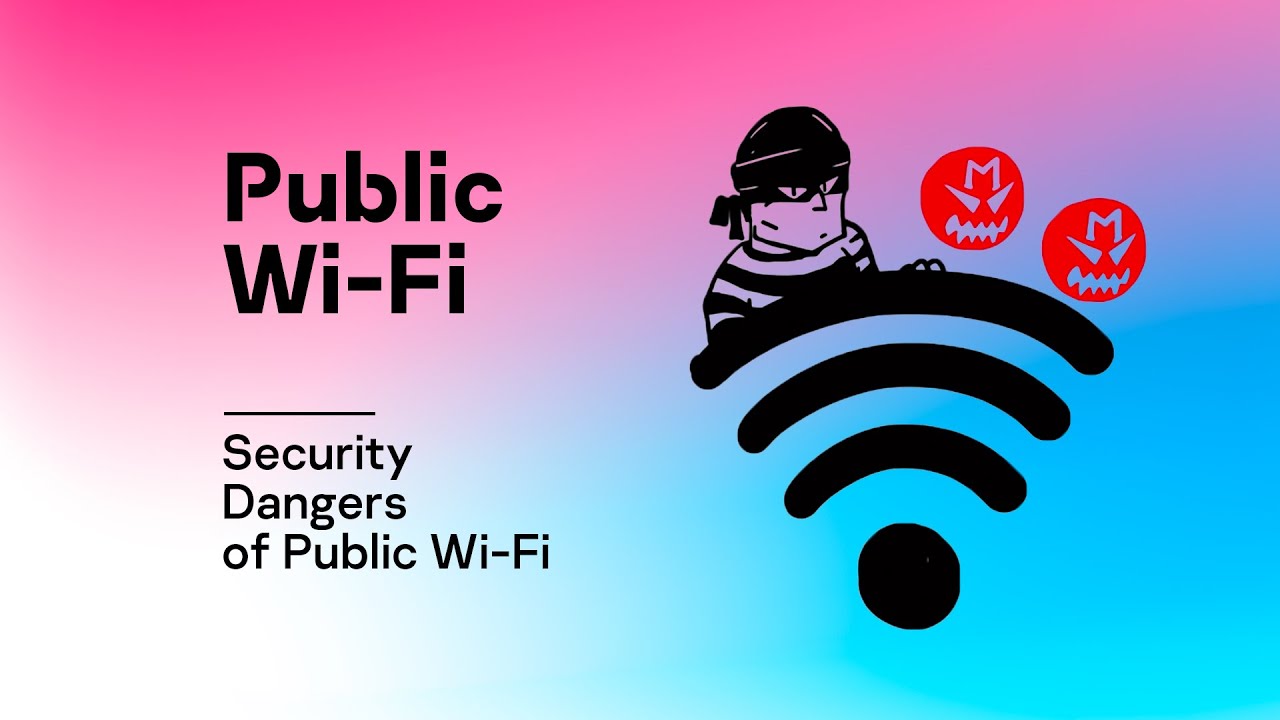
Hackers can use “man-in-the-middle” (MITM) techniques – meaning they intercept the flow of data between you and the destination website without you knowing. In seconds, all your login information, credit card numbers, or emails you just sent can be stolen.
According to a report fromCybersecurity Insiders 2023, nearly 1 in 3 user data breaches originate from using public Wi‑Fi without encrypting the connection.
Benefits of enabling VPN:
- Hide real IP: Avoid being located or tracked by third parties
- End-to-end data encryption: The hacker will only see meaningless data streams.
- Secure access even on untrusted networks
- Bypass content censorship, regional blocking (if applicable)
If you are unsure which VPN to choose, try Hidemium – security service integrated right into the browser, easy to use, stable speed and anonymous proxy support.

>>>Learn more: Proxy, VPN and Anti Detect Browser Comparison – What Are the Notable Differences?
2. Turn off device sharing, Bluetooth, AirDrop, and nearby connections when using public Wi‑Fi
When you turn on Wi‑Fi in public places, these features are sometimes left enabled – leaving your device vulnerable to detection and unauthorized connection by strangers. Some common attacks involving these protocols include:
- Send strange files via AirDrop to trick users into opening them
- Exploiting Bluetooth Vulnerability to Gain Access to Devices
- Scan open shared ports to identify users on the LAN
Proximity protocols like Bluetooth LE, Wi‑Fi Direct, AirDrop are designed to facilitate quick connections between devices. But on public networks, they act as invisible “beacons”—broadcasting continuously—and reveal the identity of the device, even its username or previous connection history.
How to turn off nearby connections:
- AirDrop (iOS/macOS): Go to Settings → AirDrop → Turn off or select “Contacts Only"
- Bluetooth: Turn off completely when not needed
- File Sharing: On Windows/macOS, turn off sharing under Network & Sharing
- Anti-fingerprinting browsers like Hidemium help isolate profiles – but you should still control the underlying operating system layers
3. Avoid logging into sensitive accounts without an encrypted connection
Logging into accounts containing personal data, finances, or system access (like admin, CRM, crypto wallets...) on an unsecured network can result in loss of control in just minutes.
How to check and prevent:
- Only log in if HTTPS is available: Check for the lock icon in the browser address bar
- Avoid logging into financial accounts, work systems, crypto wallets, admin pages... without an encrypted connection (VPN or HTTPS)
- Clear cache and cookies after a session, especially when using a public computer.
- Do not save passwords on your browser when using a public network.
Suggestions from Hidemium:
- Hidemium does not store shared cookies or caches between profiles – keeping data isolated between sessions
- Combine VPN, password manager and double check each URL before logging in
4. Use an anti-fingerprint browser to avoid being tracked
When you use public Wi‑Fi with your browser in “incognito mode,” you can prevent your history from being saved – but that doesn't mean you're anonymous.
In fact, websites and advertising platforms can still “identify” you using your fingerprint: a unique identifier string created from browser and system information.
Fingerprint includes:
- Device type, screen resolution
- Time zone, operating system language
- Browser version, pre-installed fonts
- CPU/GPU hardware, canvas/webGL ID
By combining fingerprint with IP (even through VPN), the system can still identify that you are the same person who visited before – and link your behavior between sessions.
On public networks, fingerprinting is more dangerous:
- Device traces are easily highlighted if the fingerprint is too distinct
- Some Wi‑Fi is injected with tracking scripts, fingerprinting is more thorough
- Sharing IP + fingerprint for multiple accounts is vulnerable to identity linking
Practical solution: use an anti-fingerprint browser
Some careful users choose the manual way: opening a virtual machine, changing operating systems, resetting fingerprints for each session. But a simpler and more professional way is to use an Antidetect browser – like Hidemium.
Hidemium allows you to:
- Create multiple browser profiles, each with its own fingerprint
- Customize user-agent, resolution, time zone… for each session
- Attach private proxy → avoid duplicate IP and fingerprint
- Thoroughly isolate cookies, caches, and access identities
This is especially useful if you need to log into multiple service accounts, work remotely, or access region-restricted platforms – while still ensuring your device's “digital fingerprint” is not exposed.
Antidetect Browser
5. Delete sessions, history, and traces after leaving public Wi‑Fi
Even if you're careful to use a VPN, limit device sharing, and avoid logging into important accounts – there's still a chance that information from your session could leak if you don't clean up your data afterward.
Browsers, operating systems, and applications typically store:
- Cookies, session tokens (can be reused if stolen)
- Temporary files from websites you have recently visited
- DNS cache or last connected IP history
- Behavior history: from social media access, to system login
Actions you should take after each time you use public Wi‑Fi:
- Close all tabs, exit browser completely
- Clear cookies, cache history, especially if not using a split browser
- Clear DNS cache (on Windows/macOS/Linux depending on the method)
- Log out of all accounts if logged in temporarily
- Check the settings of applications that have permission to run in the background and send data (like Chrome, Outlook, OneDrive…)
- If using separate profiles like on Hidemium, just delete or reset the session – all fingerprints, cookies and proxies will be completely refreshed
Tip: If you are used to using Task Scheduler or cron job to clear cache, DNS periodically, combined with a separate browser for public Wi‑Fi – Hidemium is an ideal choice.
Conclude:
Public Wi-Fi is convenient, but it also poses a number of security risks if you’re not careful. Protecting your digital identity and personal data isn’t just about the technology, it’s also about your own habits. By following these five simple tips – from using a VPN, turning off device sharing, avoiding sensitive logins, preventing fingerprinting, and wiping your data after each session – you’ll be well on your way to staying safe online.
If you are looking for an effective and in-depth solution to protect your digital identity, Hidemium browser will be a reliable companion in every connection journey, especially when accessing public networks.
>>>> SEE MORE:
Related Blogs

Selling on major e-commerce platforms can generate enormous revenue, but it also comes with extremely strict compliance and review policies. Even a minor slip, such as a leak of device-related data, can lead to account suspension. Let’s explore how to create a clean operating environment for eBay/Amazon using Hidemium in the article below.1. Why is it necessary to create a clean environment when[…]

If you are looking for a Kiwi VPN review, the main questions are whether the service is safe, whether it keeps user logs, how much it affects internet speed, and whether the Premium version is worth paying for.Kiwi VPN is a VPN application designed to route your internet traffic through a remote server and change the IP address websites see. It offers both free and paid options, but the right[…]
.png)
Kameleo is one of the highly rated Antidetect browsers, supporting users to safely manage multiple accounts on the same device. Since its launch in 2018, Kameleo has attracted the attention of a community of users concerned about privacy and security of personal information online. So in 2025, will Kameleo still be a reliable choice? Let's go together Hidemium Explore details in the article[…]

In the era of AI explosion, many businesses need to use many tools at the same time such as ChatGPT for content, MidJourney for images, or Veo3 for video. To reliably use these tools across regions, Croxy residential proxies (80M+ IPs, 195+ countries) are key to overcoming IP blocks and ensuring a stable base for account sharing. However, the cost of purchasing each tool individually or[…]

CAPTCHAs are designed to distinguish humans from bots, but in the fields of automation and software testing, bypassing this layer of protection is sometimes a necessary requirement. Dedicated CAPTCHA solving services meet that need by combining the power of algorithms with global human resources.In this article, Hidemium will analyze and compare the four leading platforms today — 2Captcha,[…]

In the context of relationships with cyber security threats as cyberattacks continue to increase, protecting small businesses from cyberattacks has become a top priority. 2025 marks a turning point with many advanced technology solutions that help small businesses improve their defenses without spending too much money.This article Antidetect Browser Hidemium will introduce Top 13 Cyber Security[…]
